
Somebody decided your organization was moving to Microsoft 365, the move happened over a weekend, and now your computer looks slightly different, your files are not where you left them and something keeps asking you to approve a sign in on your phone. Nobody asked you whether you wanted this and nobody gave you a manual.
This is the manual. It is written for the person who has to use Microsoft 365 rather than the person who bought it, it assumes you are good at your actual job and have no interest in becoming good at this, and it is arranged so you can jump to the one thing you need and get back to work. Bookmark it. Most people come back to it three or four times in the first fortnight, usually for the file sync section.
- 1. What actually changed
- 2. Coming from Google Workspace
- 3. Your first sign in
- 4. Using Microsoft 365 in a browser
- 5. Installing the apps on your computer
- 6. Where your files live now
- 7. Saving and sharing without losing work
- 8. Finding things again
- 9. Email and calendar
- 10. Teams, day to day
- 11. Creating a team and channels
- 12. Recording your screen
- 13. The other apps you now have
- 14. Copilot, and what to ask it
- 15. Automating the boring parts
- 16. Working more comfortably
- 17. Habits to unlearn
- 18. Staying safe without thinking about it
- 19. When something goes wrong
- 20. Your first week checklist
In a hurry and only want your files back? Jump straight to Where your files live now.
1. What actually changed
Almost everything confusing about the first week comes from one idea that nobody explains, so here it is first. Your files did not move to some vague place called the cloud. They moved to two specific places that do two different jobs, and once you can tell those two apart, most of the rest of this guide becomes obvious.
OneDrive is yours. It is the replacement for your personal drive, the one that was probably called H or had your name on it, and for the files that used to sit on your desktop. Nobody else can see what is in it unless you deliberately share something. Think of it as your desk drawer.
SharePoint is the company's. It is the replacement for the shared drives, the ones called S or G or Public. Files in SharePoint belong to a team or a department rather than to a person, which matters more than it sounds: when somebody leaves, their OneDrive goes with them and the SharePoint content stays. Think of it as the filing cabinet in the corner of the office.
Teams is a window, not a third place. This is the part that trips up almost everyone. When you open the Files tab in a Teams channel, you are looking at a folder in SharePoint. Not a copy of it, not something similar to it, the actual folder. Upload a file in Teams and it appears in SharePoint. Rename it in SharePoint and the name changes in Teams. There is one file and there are several doors into the room it sits in.
Teams, File Explorer and your phone are all views onto the same two storage places. The file only exists once.
Two smaller things also changed on the same day. Your email address is now your username for everything, so where you used to type a short network name to log on, you now type the whole address. And the drive letters are gone. There is no G drive any more, and mapping one back is not the answer, because the thing that replaced it is better once you know where to look. That is the next few sections.
2. Coming from Google Workspace
If your organization moved from Google rather than from an old file server, the hard part is not learning new software. It is that everything has a different name and sits in a different place, and the muscle memory you built over years now takes you nowhere. Here is the translation.
| What you used | What you use now | Worth knowing |
|---|---|---|
| Google Drive, My Drive | OneDrive | Your private files. Same idea, same job. |
| Google Drive, Shared drives | SharePoint, reached through Teams | You will usually open these from a team rather than from a drive. |
| Google Docs | Word | Runs in the browser exactly like Docs, and also as a real desktop app. |
| Google Sheets | Excel | The desktop version is considerably more capable than Sheets. |
| Google Slides | PowerPoint | Same. |
| Gmail | Outlook | Labels become folders. Search works differently, see section 8. |
| Google Meet | Teams | Meetings and calls both live in Teams now. |
| Google Chat | Teams | Same app as meetings, which takes a week to get used to. |
| Google Calendar | Outlook Calendar | Built into Outlook rather than a separate site. |
| Google Keep | OneNote, or To Do for lists | OneNote is much bigger than Keep. To Do is the closer match for quick lists. |
| Google Sites | SharePoint | SharePoint is both the file store and the intranet. |
| Google Forms | Microsoft Forms | Very close match. |
 OneDrive
 SharePoint, reached through Teams
 Word
Word Excel
Excel PowerPoint
 Outlook
 Teams
Teams OneNote, or To Do for lists
 Microsoft Forms
Beyond the names, four differences actually catch people out. The first is that there is no single My Drive holding everything, because your files are deliberately split between what is yours and what is the company's. The second is that sharing is done per file or folder with a link you choose the settings for, rather than by dropping something into a shared drive and letting the drive decide. The third is that the desktop apps are real applications rather than browser tabs, so Excel on your computer can do a great deal that Sheets never could. The fourth is offline: Google handled this through the browser, whereas Microsoft handles it through File Explorer and the sync client, which is section 6 and is the section most worth reading properly.
3. Your first sign in
The first morning is the one that generates the most help desk calls, almost all of them about the same three things. Work through this section once, properly, and you will not have to think about any of it again.
Signing in with your work account
Your username is now your full work email address. Type the whole thing, including the part after the at sign, wherever you are asked to sign in. Your password may have been reset as part of the move, in which case whoever ran the migration will have given you a temporary one and you will be asked to change it the first time you use it.
Setting up Windows Hello, the PIN it asks you to create
Shortly after your first sign in, Windows will ask you to create a PIN, and will offer to set up your face or your fingerprint if your computer has the hardware for it. A lot of people assume this is a downgrade, because a short PIN looks obviously weaker than a long password. It is worth thirty seconds to understand why the opposite is true, because it is the single most useful security idea in this whole guide.
Your password works anywhere. If somebody steals it, they can sign in as you from a laptop on the other side of the world and you will never know. Your PIN works on exactly one computer, because it never leaves that computer and it never travels across the internet. It unlocks a key stored in a hardware chip inside the machine on your desk. Someone who learns your PIN has nothing useful unless they also steal the physical computer. That is why a four digit PIN is genuinely safer than a sixteen character password.
To set it up when prompted:
- Select Set up or Next when Windows offers it.
- Confirm who you are with the method your organization uses, usually an approval on your phone.
- Choose a PIN and enter it twice.
- If the option appears, set up face or fingerprint as well. The PIN stays as the backup for when the camera cannot see you.
If you skipped it and want it back, open Settings, then Accounts, then Sign in options.
Installing Microsoft Authenticator and registering for MFA
Multifactor authentication, which everybody shortens to MFA, is the thing that asks you to approve a sign in on your phone. It exists because passwords alone stopped being enough a long time ago. Setting it up takes about four minutes and you only do it once.
- On your phone, install Microsoft Authenticator from the App Store or Google Play. It is free and published by Microsoft. Do not use a different app unless your IT team asked you to.
- On your computer, go to aka.ms/mysecurityinfo and sign in. This page is worth bookmarking on its own, because it is where you manage everything to do with how you sign in.
- Select Add sign in method, then choose Microsoft Authenticator.
- A QR code appears on the screen. In the app on your phone, tap the plus button, choose Work or school account, then Scan a QR code, and point the camera at your screen.
- The website sends a test notification and shows a two digit number. Type that number into your phone. This is called number matching and it is there so that a prompt you did not trigger cannot be approved by accident.
If your organization is nudging people to switch on Authenticator, this is the screen that appears after you sign in.
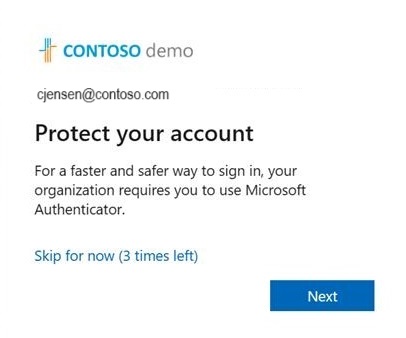
Used with permission from Microsoft.
If an approval prompt appears on your phone and you were not signing in to anything, deny it and tell your IT team immediately. It means somebody else has your password and is standing at the door with it. Approving that prompt to make it go away is how organizations get breached. Never approve a prompt you did not cause.
Passkeys, the version without a password at all
You may be offered a passkey instead of, or as well as, the approval prompt. A passkey replaces your password entirely with your face, your fingerprint or your device PIN. It is faster, it cannot be phished, and it is the direction all of this is heading. If your organization offers it, take it. Setting one up follows the same path: go to aka.ms/mysecurityinfo, select Add sign in method, and choose the passkey option, then follow the prompts on your device.
Name it something you will recognise later, such as Work laptop or iPhone, so you can tell your passkeys apart if you register more than one.

Used with permission from Microsoft.
Before you replace your phone, read this
This is the most common ticket after any migration and it is almost entirely preventable. Your ability to sign in is tied to the phone in your pocket. If you wipe it, trade it in or drop it in a lake before moving your work account across, you are locked out, and you cannot fix it yourself, because a system that let a stranger holding your new phone talk their way back in would not be protecting you at all.
So, while the old phone still works: install Authenticator on the new phone, go to aka.ms/mysecurityinfo on a computer, and add the new device as a sign in method. Then wipe the old one. If you are reading this too late, contact your IT team and ask for a temporary access pass, which is a short lived code that lets you sign in once so you can register the new phone.
4. Using Microsoft 365 in a browser
Everything you now use works in a web browser, on any computer, without installing anything. This is genuinely useful and most people never find out. It covers the borrowed laptop, the machine at home, the hotel computer, and the afternoon your own laptop refuses to start.
The address is m365.cloud.microsoft. You may have office.com or microsoft365.com written down somewhere, and both of those still work and will bring you to the same place. Sign in with your work email address and you land on a page showing your recent files and every app you have.
The single most useful control on that page is the app launcher, the grid of nine small squares in the top left corner. It appears on every Microsoft 365 page and it is how you move between apps without going back to the start. If you are ever lost, that grid is the way home.
From the launcher you can open:
- Outlook for your email and calendar, which is the full thing and not a cut down version
- Teams for chat, calls and meetings, including joining a meeting on a computer that has nothing installed
- Word, Excel and PowerPoint for opening, editing and creating documents
- OneDrive for your own files and SharePoint for the company's
No installation, no licence check, any computer. Sign in at m365.cloud.microsoft and open any of these from the app launcher.
Product icons used with permission from Microsoft.
The browser versions handle everyday work perfectly well. Where they fall short is the heavier end: complicated Excel models with macros or pivot heavy analysis, long Word documents with detailed layout and mail merge, and working with no connection at all. For those, use the installed apps, which is the next section.
Use a private or incognito window, and when you finish, sign out properly from the menu under your initials rather than just closing the tab. Closing the tab leaves you signed in, and the next person to open that browser is you as far as Microsoft is concerned.
5. Installing the apps on your computer
Your work computer probably already has Word, Excel, Outlook and Teams installed. What most people do not realise is that your licence usually also covers your own devices, typically up to five computers, five tablets and five phones, so you can put the full applications on a home machine at no extra cost. Check with your IT team if you are unsure what your organization allows, since some restrict this deliberately.
To install on a computer:
- Go to m365.cloud.microsoft and sign in.
- Look for Install apps or the Apps section, usually top right.
- Choose Microsoft 365 apps and run the installer that downloads. It installs Word, Excel, PowerPoint, Outlook and OneDrive together.
- Open any one of them, and when it asks you to sign in, use your work email address. This is the step people skip, and skipping it is why the apps keep nagging about activation.
One download installs all of these together. Teams comes separately.
Product icons used with permission from Microsoft.
Teams installs separately, either from the same page or from the Microsoft website. On your phone, install Outlook, Teams and OneDrive from your app store and sign in to each with the same work address. That is the whole setup, and it takes about ten minutes including the downloads.
6. Where your files live now
This is the section people come back to. There are four ways into your files and they are all looking at the same thing, so pick whichever suits the moment rather than trying to decide which one is correct.
In a browser
Go to m365.cloud.microsoft, then OneDrive from the app launcher, and you are looking at your personal files. For shared files, open SharePoint instead and you will see the sites you have access to. Best for a quick look on a machine that is not yours.
In Teams
Open a team, choose a channel, and select the Files tab along the top. Those are the shared files for that channel, and, as covered in section 1, they are the same files that live in SharePoint. Files somebody sent you in a one to one chat appear under the chat's own Files tab, and those actually live in the sender's OneDrive, which is why a file shared in a chat can disappear when that person leaves. Anything that matters to the team should be in a channel, not a chat.
In File Explorer, which is the one worth learning
If you want your files to behave the way the old drives did, this is how. Open File Explorer and you will see OneDrive in the left hand pane with your company name next to it. Everything in there is your OneDrive, and you can work with it exactly as you always have: double click to open, drag to move, right click to rename.
The confusing part is the little icons next to each file, so here is what they actually mean.
All three mean the file is safe. They differ only in whether it is currently taking up room on your computer.
A blue cloud means the file lives in the cloud and is not currently on your computer. Double click it and it downloads in a moment, then opens. This is why your laptop is not full even though you can see hundreds of gigabytes of files. A green tick outline means you opened it recently so a copy is on the machine, and Windows will quietly clear those out again if it needs the room. A solid green circle means you have pinned it: it stays on the computer permanently and works with no connection at all.
To pin something, right click the file or folder and choose Always keep on this device. Do that to the folder you need before a flight or a site visit with no signal. To release the space again afterwards, right click and choose Free up space.
Getting shared folders into File Explorer
Your OneDrive appears in File Explorer on its own. Shared folders from Teams and SharePoint do not, until you ask for them, and there are two ways to do that. Only one of them is worth using.
Open the folder in the browser, or open the Files tab in Teams and choose to open it in SharePoint, and you will see two buttons: Sync and Add shortcut to My files.
Use Add shortcut to My files. The shortcut belongs to your account rather than to one machine, so you do it once and the folder appears in File Explorer on every computer you sign in to, including a replacement laptop three years from now. The older Sync button ties the folder to the computer you are sitting at, which means repeating it everywhere and again after every rebuild. Microsoft now recommends the shortcut for exactly this reason. Sync is still right when your IT team deliberately deploys a library through policy, but if the choice is yours, choose the shortcut.
On your phone or tablet
Yes, and it works well. Install OneDrive for files, Teams for chat and meetings, and Outlook for mail and calendar, then sign in to each with your work email address. All three show you the same files and messages as your computer, updated as they change.
Offline works slightly differently on a phone. Rather than pinning a whole folder, you mark individual files: open the file in OneDrive, tap the three dots, and choose Make available offline. Do that to the documents you need before you travel. The OneDrive app can also photograph a paper document and save it straight to a folder, which is quietly one of the most useful things on this list if you deal with receipts or signed forms.
7. Saving and sharing without losing work
The habits that kept your files safe on a file server are, mostly, the habits that will cause you trouble now. Three of them are worth replacing on day one.
Stop pressing save
Open a document stored in OneDrive or SharePoint and you will see AutoSave switched on in the top left corner. Every change is written as you make it. There is no save step and there is no losing an afternoon of work to a crash.
If AutoSave is greyed out, the file is not in the cloud, it is sitting somewhere local like your desktop or a USB stick. That is worth fixing rather than ignoring: use File, then Save a Copy, and put it in OneDrive.
Delete every file called final v3 FINAL
You no longer need them. Every document keeps its own history, so the old habit of saving a new copy before making big changes is now creating the mess it was meant to prevent. To go back, select the file name in the title bar at the top of the window and choose Version History, or right click the file in OneDrive in a browser and pick the same. You get a list of versions by date, you can open any of them to look, and you can restore one if it is the one you wanted. Nothing is lost when you restore, because the current version is itself kept in the history.
Send a link, not an attachment
This is the single habit change with the biggest payoff, and it is worth being blunt about why. An attachment is a frozen copy. The instant you send it, your version and their version begin to drift. Send it to six people, get six replies with edits, and you now have seven documents and no way to know which one is right. Everybody has lost a day to this at least once.
A link points at one file. Comments, edits and changes all land in the same place, and whoever opens it last sees everything that came before. In Outlook, attach a file that is already in OneDrive or SharePoint and it will offer to send a link instead of a copy. Take the offer.
When you share, whether from Outlook, from Teams or with the Share button in the top right of Word, Excel and PowerPoint, you choose who the link works for. There are three answers and getting this right is most of file security:
- People in your organization is the sensible default for internal work. Anyone at your company who receives the link can open it, and nobody outside can.
- Specific people is for anything sensitive. Only the named people can open it, even if the link is forwarded on. Use this for anything about money, staff or contracts.
- Anyone with the link works without signing in, which means it works for anybody who ever gets hold of it. Use it only for genuinely public material, and if your organization has switched it off, that is deliberate.
Choosing correctly here is most of file security, and it takes one extra click.
You can also decide whether people may edit or only view, and you can set an expiry date so a link to a proposal stops working after the deadline. Both are on the same panel, behind the settings gear.
Working on the same document at the same time
You and a colleague can have the same file open at once. You will see their name and a coloured cursor moving through the document, and their changes appear as they type. Nobody gets locked out and nobody has to wait. It feels wrong for about ten minutes and then feels obvious.
The old read only lock still appears occasionally, usually when somebody has the file open in an older desktop app or left it open on a machine that has gone to sleep. Section 19 covers what to do about it.
Getting something back that you deleted
There are two recycle bins and knowing about the second one has saved a lot of people a lot of grief. Delete a file and it goes to the recycle bin of the place it lived, in OneDrive or in the SharePoint site, where it stays for 93 days. Open OneDrive or the site in a browser and select Recycle bin in the left hand menu.
If it is not there, look for the second stage recycle bin, which catches things removed from the first one. In a SharePoint site it is a link at the bottom of the recycle bin page. If somebody emptied both, your IT team may still be able to help, so ask before assuming the worst.
8. Finding things again
Here is the shift that takes longest to accept: you are not supposed to remember where things are any more. On a file server, finding a document meant knowing the folder path, and people built elaborate mental maps of the shared drive. That skill is now mostly obsolete, and the replacement is search, which is considerably better than the search you remember from Windows a decade ago.
From the portal. The search box at the top of m365.cloud.microsoft looks across everything you have access to at once: your own files, shared files, emails, Teams messages and people. If you have no idea where something is, start here.
From Teams. The box at the top searches messages, files and people. Typing a few words you remember from a conversation is usually faster than scrolling back through it. You can filter to just messages or just files once results appear.
From within a SharePoint site or a folder. Searching from inside a site limits results to that site, which is what you want when you know roughly where a document lives but not exactly.
In Outlook. Search the current folder or all mailboxes, and narrow with the filters that appear: from a particular person, has an attachment, within a date range. Those three filters answer most searches.
Start wide when you have no idea where something is. Start narrow when you nearly know.
Two things worth knowing. Search covers the contents of documents, not just their names, so you can find a contract by a clause inside it. And you can only ever find things you have permission to see, so search will never show you somebody else's private files.
9. Email and calendar
Why Outlook looks different
If Outlook on your computer looks unfamiliar, you are almost certainly in the new version. Microsoft began switching people over by default in April 2026, so this may have happened at the same time as your migration and got blamed on it. The new version is simpler, closer to Outlook on the web, and missing a few things power users lean on, notably some older add ins and some rules behaviour.
There is a toggle in the top right corner to go back to the classic version if you need it. Classic Outlook is supported until at least 2029, so switching back is a legitimate choice rather than a stubborn one, and there is no rush.
If this happened the same week as your migration, the migration probably got the blame.
The handful of settings worth fixing on day one
- Your signature. Signatures usually do not survive a migration. In Outlook, go to Settings, then Accounts, then Signatures. Set one for new messages and one for replies.
- Automatic replies. Under Settings, then Automatic replies. You can write a different message for people outside the organization, which is worth doing.
- Your working hours. In calendar settings. Colleagues booking meetings see your availability, so getting this right stops a lot of eight in the morning invitations.
- Rules. Rules that filed messages into folders often need rebuilding. Settings, then Rules.
Shared mailboxes and other people's calendars
If you had access to a shared mailbox such as accounts or info, it usually appears on its own in the folder list on the left, below your own mailbox. If it has not appeared, ask your IT team to add you rather than trying to add it yourself, because the permissions are set at their end.
To see a colleague's calendar, go to the calendar and select Add calendar, then Add from directory, and type their name. By default you will see whether they are free or busy. Seeing more detail needs them to share it with you.
10. Teams, day to day
Chat or channel, and why it matters
Teams gives you two places to write and people use them interchangeably, which is the root of most complaints about Teams being a mess.
Chat is a private conversation between you and one or more named people. It is the equivalent of leaning over and asking somebody a question. Nobody else can see it, it cannot be found later by someone who joins the project, and files shared in it live in the sender's OneDrive.
Channels sit inside a team and everyone in that team can read them. This is the equivalent of talking in the room. New joiners can scroll back and catch up, files live in the team's SharePoint rather than a person's OneDrive, and the conversation survives people leaving.
The rule that keeps things tidy: if it is about the work, put it in a channel. If it is about a person, or it is a quick aside, use chat. Work discussions in chat are how organizations end up with knowledge that walks out of the door when somebody resigns.
The one decision that determines whether your team can find anything in a year.
One more habit worth adopting: reply inside the thread rather than starting a new message at the bottom. Threads are what make a channel readable a month later.
Meetings
Join from the calendar in Teams or Outlook, or from the link in the invitation. Before you join you get a screen to check your camera and microphone, which is worth ten seconds because it is where you discover the wrong microphone is selected. During a meeting the controls sit in a bar at the top: microphone, camera, share, chat, participants, react, and the three dots menu for everything else.
Background blur is under the camera controls, and it is the polite default for working at home. Live captions are in the more menu and are useful in a noisy room or a call with strong accents. Recording is also in that menu, and the recording lands in the meeting chat afterwards, so nobody has to email a video file around.
Presence, and why it says you are away
The coloured dot on your picture is your presence, and it is set automatically: green when you are active, yellow when your computer has been idle, red when you are in a meeting or sharing your screen. You can set it yourself by selecting your picture, and Do not disturb silences notifications for everyone except people you mark as priority.
It goes yellow while you are reading a long document or in a meeting in another room, which is not a judgement of your work ethic and is not visible to anybody as a report.
Turning down the noise
The default notification settings assume everything matters equally, which is why people end up hating Teams. Ten minutes here is the best investment in this guide.
Go to Settings, then Notifications and activity. Then, in each channel you do not need to follow minute by minute, select the three dots next to the channel name, choose Channel notifications, and set it so you are only told when somebody mentions you by name. Leave full alerts on for the two or three channels that genuinely need your attention. You can also set quiet hours so Teams stops notifying your phone in the evening.
11. Creating a team and channels, and letting people in
You can probably create a team yourself, unless your organization has deliberately restricted it. Before you do, check whether one already exists for the group you have in mind, because the most common problem with Teams is not too few teams, it is forty teams with three members each and nobody sure which is the real one.
Creating a team
- In Teams, select Teams in the left hand bar, then Join or create a team, then Create team.
- Choose From scratch, or select an existing group if your department already has a distribution list, which saves adding everyone by hand.
- Pick Private or Public. Private means people join only when an owner adds them, and it is the right answer most of the time. Public means anybody in the organization can find and join it, which suits a social or a company wide interest group.
- Give it a name that will still make sense to somebody in two years.
- Add members, and add at least one other owner.
That last point is not a formality. A team with one owner is a team that becomes unmanageable the moment that person leaves or goes on holiday. Always have two.
Channels, and the thing people get wrong
A new team starts with one channel called General. Add more with the three dots next to the team name and Add channel. There are three kinds:
- Standard channels are visible to everyone in the team. Use these for nearly everything.
- Private channels are visible only to members you specifically add, which suits something like a hiring discussion inside a wider department team.
- Shared channels can include people from outside the team, and even from another organization, without adding them to everything else. Useful for a client or a supplier.
Now the part that trips people up. Every standard channel creates a folder in the team's SharePoint site. Your channel structure is your folder structure. Create fourteen channels and you have created fourteen top level folders, and nobody will be able to find anything. Create three or four broad ones and use folders inside them, and the whole thing stays navigable. It is worth thinking about for five minutes at the start, because renaming channels later is possible but moving the files around afterwards is tedious.
This is the part people get wrong. Fourteen channels means fourteen top level folders, and nobody finding anything.
Private and shared channels are the exception: they get their own separate SharePoint site rather than a folder, which is how their content stays hidden from the rest of the team.
Adding people, and the difference between member and owner
Select the three dots next to the team name and choose Add member. Type a name, add them, and they can see everything in the standard channels straight away. Private channels need adding separately.
In the same menu, Manage team shows everybody and lets you switch a person between member and owner. Owners can add and remove people, create and delete channels, and change settings. Members can do the everyday work. Give owner to the people who will look after the team, not to everybody.
To bring in somebody from outside your organization, add their email address the same way. Whether that works depends on your organization's settings, and if it is blocked, that is a deliberate decision rather than a fault.
Pinning things people need
The plus button along the top of a channel adds a tab. The genuinely useful ones are pinning a specific document, such as the project plan everyone opens twenty times a day, and adding a Planner board for tasks. It saves people hunting through the Files tab every time.
12. Recording your screen to show somebody
Explaining a process in writing takes twenty minutes and gets misread. Recording yourself doing it takes ninety seconds and cannot be misunderstood. Windows has this built in, no download and no licence required, and almost nobody knows.
The quick way, for a short clip
- Press Windows, Shift and R together.
- Drag to select the part of the screen you want to record.
- Select Start, do the thing you are demonstrating, then select Stop.
- The recording opens in Snipping Tool and saves automatically to Videos, then Screen Recordings.
That is the whole thing. It is the fastest way to answer how do I do this, and it is far better than a numbered list with screenshots.
The longer way, when it needs tidying up
For something you will send to a lot of people, or that needs trimming or a voiceover, use Clipchamp, which is already installed on most Windows 11 computers. Open it, choose Record and create, then Screen, or Screen and camera if you want your face in the corner. The clip lands on an editing timeline where you can cut the false start at the beginning, add captions and export.
All three are already on your computer. None of them needs a download or a licence.
Recording a meeting instead
If what you want to capture is a conversation rather than a procedure, record the Teams meeting itself, from the three dots menu during the call. The recording is saved automatically and appears in the meeting chat afterwards, with a transcript. Everybody invited can watch it without you sending anything.
Do not email it. Video files are large, most mail systems reject them, and the ones that get through fill up everybody's mailbox. Upload it to the Files tab of the relevant Teams channel and post a link. It plays in the browser, everyone with access can watch it, and it is still there when the next new starter needs it.
13. The other apps you now have
Your licence includes a number of things nobody mentions, because the migration was about email and files and there was no time. Each of these solves a problem you probably currently solve with a spreadsheet or a sticky note.
These arrived with your licence. Each one replaces something you are probably doing in a spreadsheet or an email thread right now.


Product icons used with permission from Microsoft.
Planner is for tracking who is doing what on a piece of work. Cards on a board, each with an owner and a due date. It is the right answer whenever a project is being run out of a spreadsheet that three people keep overwriting. Add it as a tab in the relevant Teams channel and it stays where the work is discussed.
To Do is your own task list, private unless you share it. Its best feature is invisible until you use it: flag an email in Outlook and it appears in To Do automatically, so the messages you meant to deal with stop living in your inbox as a to do list.
OneNote is a notebook that syncs everywhere. Better than a document for meeting notes because you can type anywhere on the page, paste anything in, and search handwriting. Notebooks can be shared with a team, which makes it a decent place for procedures that change too often for a formal document.
Forms builds a survey or a form in a couple of minutes, and the answers arrive in a spreadsheet automatically. Use it for event sign ups, feedback, holiday requests, anything currently collected by reply to this email, which then has to be counted by hand.
Bookings gives people a page where they can book time with you, checking your calendar as they go. If you spend a lot of time on when are you free, this removes it entirely.
14. Copilot, and what to actually ask it
Copilot inside Word, Excel, Outlook and Teams needs a separate paid licence that your organization may not have bought. If you do not see it, nothing is broken and you have not missed a setting. Skip to the next section, or ask whoever looks after IT whether it is coming.
If you do have it, Copilot appears as a button in the ribbon or a panel at the side of Word, Excel, PowerPoint, Outlook and Teams. The important thing to understand is what makes it different from the free chatbots: it can see your own documents, emails and meetings, within the limits of what you already have permission to open. It cannot show you anything you could not have found yourself, and asking it about a document you have no access to returns nothing.
The main mistake people make is asking vague questions and concluding it is useless. Copilot responds to specifics. Give it a source, a task and a format.
Not a separate app. It turns up as a button inside the things you already use, and it can see your own files and mail, within whatever you already have permission to open.
Product icons used with permission from Microsoft.
Prompts worth trying in your first week
In Outlook. Open a long thread and ask Summarise this conversation and list what I have been asked to do. This is the one that converts people, particularly on the forty message thread you were copied into on Friday afternoon. Also useful: Draft a polite reply saying we can do this by the end of the month but not sooner, then edit what it produces rather than accepting it.
In Teams. In a meeting you joined late, What have I missed and has anything been assigned to me. After a recorded meeting, List the decisions made and the actions with their owners.
In Word. Rewrite this section to be shorter and less formal, or Draft a one page summary of this report for somebody who will not read the whole thing. It is also good at the job nobody enjoys: Check this document for anything unclear or contradictory.
In Excel. Explain what this formula does in plain English is worth the licence on its own if you have inherited somebody else's spreadsheet. Also Add a column that shows each row as a percentage of the total.
In PowerPoint. Create a presentation from this document, pointing it at a file in OneDrive. Treat the result as a first draft rather than something to present.
Two habits make it far more useful. Tell it which file to look at, by typing a forward slash and choosing the document, rather than describing it. And treat everything it writes as a draft by somebody who is fast, willing and occasionally wrong: read it before you send it, because your name goes on it, not Copilot's.
If you want the detail on which licence does what, we wrote that up separately in our guide to licensing Microsoft Copilot.
15. Automating the boring parts
Power Automate is included with your licence and it lets you set up small pieces of automation without writing any code. Most people never open it because it sounds like programming. It is not: you pick a template, connect it to your account, and it runs.
The right way in is a template, not a blank page. Go to make.powerautomate.com, sign in, and select Templates. Search for what you want, select a template, sign in to the apps it uses when prompted, and select Create flow. Most take under ten minutes.
Four that genuinely save time
Save email attachments automatically. Every attachment that arrives goes straight into a OneDrive or SharePoint folder without you touching it. If you deal with invoices, timesheets, signed forms or purchase orders, this alone can save an hour a week and it removes the risk of an attachment being lost inside a thread. Search the templates for save email attachments.
Get told when something actually matters. A flow that alerts you when mail arrives from a specific person, or with a specific word in the subject, means you can stop watching your inbox all day. This is the one to build if you are waiting on something important and keep checking for it.
Post to a Teams channel when a file is added. When somebody drops a document into a particular folder, a message appears in the relevant channel. Good for anything where a team needs to know that a new report or a new contract has landed, without somebody remembering to announce it.
A simple approval. Somebody submits a form or adds a file, the approver gets a message with Approve and Reject buttons, and the outcome is recorded and the requester told. This replaces a surprising number of email chains that currently exist only so that somebody can say yes.
Pick a template and the whole thing is already wired up. You only choose the folder and the people.
Three things to know before you build anything
Your flows live under My flows at make.powerautomate.com, and each one can be switched off with a toggle rather than deleted, which is what you want the first time one misbehaves. Every flow keeps a run history showing what it did and when, so if something did not happen you can see why.
And the one that catches organizations out: a flow you build runs as you. It uses your connection to your mailbox and your files. When you leave, or when your account changes, it stops. That is fine for a personal time saver, and it is a genuine problem for anything a whole department comes to rely on. If a flow becomes important to more than one person, tell your IT team, because it should be rebuilt on an account that does not walk out of the door.
The flows above are the ones worth doing yourself. The ones that run a department, touch finance data or have to keep working after somebody leaves are worth doing properly. We build those, and we teach your team to look after them.
Book a conversation16. Working more comfortably
These are filed under accessibility, which makes people assume they are not for them. They are for everybody, and they are among the most useful things in Microsoft 365.
Dictate turns speech into text. It is in the ribbon in Word and Outlook, marked with a microphone. It is genuinely accurate now, including punctuation if you say comma and full stop, and it is much faster than typing for a first draft of anything long. Useful too if your wrists hurt by Thursday.
Read Aloud reads a document to you, under the Review tab in Word. The best use is proofreading: hearing your own writing read back catches clumsy sentences and missing words that your eye slides over every time.
Immersive Reader strips a document or an email down to plain text with adjustable spacing and size, and can highlight parts of speech. Under the View tab. It makes a dense page considerably easier to get through, and it is a real help for anyone with dyslexia.
Live captions in Teams put subtitles on a meeting as it happens, from the more menu. Worth switching on in any call with a poor connection, a noisy room or participants speaking a second language. Live translation takes it further and shows captions in another language, which changes what is possible in a meeting with international colleagues.
Focus and Do not disturb in Windows and Teams silence notifications for a set period. Pairing an hour of focus time with everything else switched off is the closest thing to the quiet office most people are ever going to get.
Filed under accessibility, which makes people assume they are not for them. They are for everybody.
17. Habits to unlearn
Everything above is about learning something new. This section is the opposite, and it is shorter and more useful. Five habits that made sense on a file server and cause problems now.
Stop emailing attachments to colleagues. Send a link. Covered in section 7, repeated here because it is the one that matters most and the one everybody keeps doing anyway.
Stop saving to places that are not backed up. If a file is not in OneDrive or SharePoint, it is not protected, not backed up and not available on your other devices. That includes the desktop, unless your IT team has redirected it, and it includes a folder you made at the root of the C drive. When the laptop is stolen, those are the files that are actually gone.
Stop using USB sticks to move files. There is no longer any reason. Share a link, which works whether the other person is in the next room or another country, and does not leave company data in a drawer or a taxi.
Stop making a copy to be safe. Version history has replaced this, and the copies now cause the problem they were meant to prevent, because six months later nobody knows which of the four files is current.
Stop using a personal account for work. Personal OneDrive, personal Gmail, personal Dropbox. When you leave, or when somebody needs the file and you are on holiday, it is unreachable. It also sits outside every protection your organization has paid for.
Every habit on the left made sense on a file server. None of them helps you now.
18. Staying safe without thinking about it
You are not expected to become a security expert. Four things cover most of it.
Understand why you get asked to sign in. The prompts are not random. They appear when something is different: a new device, an unfamiliar location, a long gap, a network your organization does not recognise. Being asked more often on a bad hotel wifi connection is the system working, not the system being broken.
Learn what a phishing email looks like. The reliable signals are urgency, a request to sign in from a link, an address that is nearly right but not quite, and a request that bypasses the normal process. The single most valuable habit is this: if a message wants you to sign in, do not use its link. Go to the site yourself the way you normally would. That one rule defeats most phishing.
Four signals, and one rule that defeats nearly all of them.
In Outlook, use the Report button, then Report phishing, rather than just deleting it. Reporting tells your security team that somebody is targeting your organization, and deleting tells them nothing. Reporting something that turns out to be legitimate costs nobody anything, so report it when you are unsure.
Check before you share outside. When you send a link to somebody outside the organization, look at who the link is for. Anyone with the link works for whoever receives it next, including anybody they forward it to. For anything sensitive, use Specific people.
Report a lost phone or laptop straight away. Same day, even if you are fairly sure it is in the car. Your IT team can wipe the work data remotely, which takes minutes, and the window between losing it and telling somebody is the only window an attacker gets. Nobody will be annoyed with you for reporting it.
19. When something goes wrong
The problems that actually happen, and what to do about each one before you ask anybody for help.
OneDrive says sync pending and nothing is happening
Select the blue cloud icon in the bottom right of your screen, near the clock, and read what it says, because it usually names the problem. The common causes are a file open in another app, a file name containing a character that is not allowed, or simply a very large upload that is still working. If it is genuinely stuck, select the gear in that panel and choose Pause syncing, wait a minute, then resume. If that does not clear it, sign out of OneDrive from the same panel and sign back in. Your files are not at risk while this is happening.
I cannot find a file I know exists
Check which account you are signed in with first, because having a personal and a work account in the same browser is the most common cause. Select your initials in the top right and confirm it is your work address.
Then search from m365.cloud.microsoft rather than browsing folders, and search for a phrase from inside the document rather than its name, since names change during migrations. Check the recycle bin. If somebody else owned the file, ask them to open it and send you a link, because it may simply be that you have not been given access.
It says the file is locked or checked out
Somebody has it open, sometimes on a machine they left running. Open it in the browser instead, where you can usually edit even when the desktop app says it is locked. If it is genuinely checked out, the person who did it, or a site owner, can check it back in. Meanwhile you can open a read only copy and work from that.
There are two copies of my file with somebody's name on one
That is a conflict copy. It happens when the same file was changed in two places before either change could sync, usually after working offline. Nothing has been lost, which is the point of it. Open both, decide which is right or merge the two, then delete the one you do not want. If it happens often, you are probably working offline in the same folder on two machines, so pinning the folder on both will help.
Somebody sent me a link and it will not open
Usually a permissions problem rather than a broken link. Check you are signed in with your work account. If you get an access request screen, use it, because it emails the owner and is faster than messaging them. If you are outside the organization that owns the file, you may need to verify your email address with a code, which is normal.
My OneDrive is full
You have a lot of space, usually a terabyte, so a full OneDrive normally means something unusual: video files, disk images, or a folder somebody shared that is far bigger than it looked. Open OneDrive in a browser, look at storage in the settings, and it will show what is taking the room. Empty the recycle bin as well, because deleted files count against your quota for 93 days.
Office keeps asking me to sign in, or says unlicensed
Usually the app is still signed in to an old account. In Word, go to File, then Account, and look at the account listed. Sign out of it, close every Office app, then open one and sign in with your work address. If it persists, restart the computer before calling anybody, because that genuinely does fix it a reasonable proportion of the time.
A meeting has no sound, or nobody can hear me
Almost always the wrong device selected rather than a broken one. In the meeting, select the arrow next to the microphone or go to the three dots and Audio settings, and check the speaker and microphone named there are the ones you are actually using. Headsets are notorious for connecting as one thing and appearing as another. Check the physical mute switch on the headset too.
When you do need to ask for help
Some things you cannot fix yourself, and account lockouts are top of the list by design. When you report a problem, the difference between a fast fix and four rounds of questions is entirely in what you include. Send:
- What you were trying to do, in one sentence
- What you expected to happen, and what actually happened
- The exact name of the file, meeting or message, and where it lives
- A screenshot of the error, including the whole window rather than a crop
- What you already tried
A report that says the file will not open takes several exchanges before anybody can start. A report that says the Q3 budget in the Finance channel opened yesterday and today says checked out by another user, and I have tried opening it in the browser, is usually solved on the first reply.
Plenty of organizations finish a migration and discover the hard part was never the migration, it was the six months afterwards. Regroove runs the help desk, fixes the things in this section before your staff have to report them, and coaches teams through the habits that make Microsoft 365 worth what you are paying for it.
Talk to us about support20. Your first week checklist
Everything above, reduced to the things genuinely worth doing in the first few days. Half an hour spent here removes most of the friction of the next six months.
Day one
- Sign in with your full work email address and set your new password
- Create your Windows Hello PIN, and add face or fingerprint if offered
- Install Microsoft Authenticator and register at aka.ms/mysecurityinfo
- Bookmark aka.ms/mysecurityinfo, and this page
- Open OneDrive in File Explorer and confirm your files are there
Day two and three
- Install Outlook, Teams and OneDrive on your phone
- Rebuild your email signature and check your automatic replies
- Find the shared folders you use most and use Add shortcut to My files on each
- Pin one folder with Always keep on this device for working offline
- Set your working hours in the calendar
By the end of week one
- Turn down notifications on every Teams channel except the two that matter
- Share one document by link instead of attaching it, to prove to yourself it is easier
- Open version history on any file, so you know where it is before you need it
- Search for something from the portal rather than browsing to it
- Check where your team keeps its files, and stop keeping a private copy
If you do nothing else on this list, do the three security items on day one and the notification settings by Friday. The first protects you and the second determines whether you end the month liking any of this.
Frequently asked questions
Where did my files actually go after the migration?
They went to one of two places, and which one depends on whether the file was yours or the company's. Anything that was in your personal drive, often the H drive or a folder with your name on it, is now in OneDrive. Anything that was on a shared drive, often the S or G drive, is now in SharePoint, which you will usually reach through a team in Microsoft Teams rather than through a drive letter. Nothing was deleted and nothing was left behind. The mental shift that helps most is to stop thinking about drive letters entirely and start thinking about who a file belongs to, because that is now what decides where it lives.
Do I need to be online to work on my files?
No, but you do need to plan for it slightly. Files you have opened recently are already on your computer and will open with no connection at all. Files you have never opened are stored in the cloud and show a cloud icon in File Explorer, and those need a connection the first time. If you know you are going to be somewhere without internet, open the folder you will need beforehand, right click it and choose Always keep on this device. Everything inside it downloads and stays available. When you reconnect, anything you changed uploads on its own.
Why does it keep asking me to approve a sign in on my phone?
That is multifactor authentication, and it is the single most effective protection your organization has against someone stealing your password. A password on its own can be guessed, reused or phished. A password plus a live approval on a device that is physically in your pocket is very hard to defeat. You will be asked less often than you expect, usually when you sign in on a new device, after a long gap, or from an unusual location. The one rule that matters: if a prompt appears and you were not trying to sign in, always deny it and tell your IT team, because that means somebody else has your password.
Should I use the Sync button or Add shortcut to My files?
Use Add shortcut to My files. It is the option Microsoft now recommends and it is better for almost everyone. A shortcut belongs to your account rather than to one computer, so you set it up once and it follows you to every device you sign in to. The older Sync button attaches a library to one specific machine, which means doing it again on your laptop, again after a rebuild, and again on a new computer. Sync still has its place when your IT team deliberately deploys a library through policy, but if you are choosing for yourself, choose the shortcut.
I got a new phone and now I cannot sign in. What do I do?
This is the most common problem after any migration, and it is much easier to prevent than to fix. Before you wipe or trade in an old phone, install Microsoft Authenticator on the new one and add your work account there while the old phone still works. If you have already lost access, you cannot fix it yourself, because the whole point of the system is that a stranger holding your new phone should not be able to. Contact your IT team and they will issue you a temporary access pass, which is a short lived code that lets you sign in once and register the new device.
Can I still email a file as an attachment?
You can, and sometimes you should, for example when sending a final signed PDF to someone outside your organization who does not need to edit it. For everything else, send a link instead. An attachment is a frozen copy: the moment you send it, your version and their version start to drift, and if six people reply with edits you now have seven documents and no idea which is right. A link points everyone at one file that updates as it is worked on. Outlook makes this easy, because when you attach a file that is already in OneDrive or SharePoint it offers to send a link rather than a copy.
Who do I ask when something is broken?
Your internal IT contact or your managed services provider, and the more specific you are the faster it gets fixed. A report that says the file will not open takes several rounds of questions before anyone can help. A report that says the file is called Q3 budget, it is in the Finance channel in Teams, it opened fine yesterday, and today it says checked out by another user, can usually be solved on the first reply. Include what you were doing, what you expected, what actually happened, and a screenshot of any error message.
One last thing
None of this is difficult, but all of it is unfamiliar, and unfamiliar is exhausting when you are trying to do your actual job at the same time. Give it a fortnight. The file business stops being confusing once the shortcuts are set up, the sign in prompts fade into the background, and at some point you will send a link instead of an attachment without thinking about it, which is the moment the migration is genuinely finished.
If your organization is still in the middle of this, or the migration technically worked but nobody has been shown any of the above, that gap is the thing we spend most of our time fixing. You can read how we approach coaching and enablement, or just get in touch and tell us what is not working.
 Author: Helio Pereira