Microsoft IntuneIntune Best PracticesWindows AutopilotConditional AccessMicrosoft DefenderApp Protection PoliciesWindows Autopatch
Microsoft Intune Best Practices 2026: Every Policy and the Settings to Enable
Regroove IT Consulting··56 min read·12,073 words
Microsoft Intune has hundreds of settings, and Microsoft changes some of them almost every month. This is the reference we use with our own technicians and clients: every policy area that matters for a small or mid sized business, the value we recommend as the default, and why, checked against Microsoft's documentation and security baselines as of October 2026.
It is in two parts. Part 1 is the checklist: the settings to apply, written as tasks you can work through in order. Part 2 is the breakdown: every setting in each policy, what it does, the recommended value and the reasoning behind it.
Before you start
The recommendations assume Microsoft 365 Business Premium. Settings that need another licence say so.
Test every change on a pilot group before applying it to everyone.
Use Microsoft's security baselines or individual policies for a given setting, never both.
Wide tables scroll sideways on a phone.
Part 1: The checklist
Everything to configure, in the order we apply it. Each item links to its detailed breakdown in Part 2.
Turn off security defaults and build Conditional Access instead: MFA for all users with an authentication strength, phishing resistant MFA for admin roles, block legacy authentication, block device code flow and require a compliant device for Microsoft 365.
Block sign ins from countries you never do business in, including unknown locations. With Entra ID P2, add sign in risk and user risk policies.
Create two cloud only emergency access accounts that sign in with FIDO2 security keys, exclude them from blocking policies, and alert on every sign in.
Turn on passkeys and move every user off SMS and voice codes before February 1, 2027.
Turn on self service password reset for all users with two methods, managed in the Authentication methods policy.
Set platform restrictions to block personally owned Windows and Android device administrator, and set a device limit of 5.
Set Windows automatic enrollment MDM user scope to All.
Create a user driven, Entra joined Autopilot profile with standard users, a naming template such as a prefix plus %SERIAL%, assigned to a dedicated device group. Consider Autopilot device preparation for new Windows 11 laptops.
Configure the Enrollment Status Page: selected critical apps only, Windows quality updates during setup, log collection on.
Configure Windows Hello for Business: TPM required, minimum PIN 6, no expiry or history, biometrics with enhanced anti spoofing, PIN recovery on.
Connect Apple Business (push certificate from a shared mailbox, automated enrollment token, await final configuration, locked enrollment) and Managed Google Play bound to an Entra account, with zero touch for company phones.
Add device cleanup rules at 90 days, Multi Admin Approval for wipes, scripts and apps, and least privilege admin roles.
Windows: minimum build 10.0.26200, BitLocker, Secure Boot, code integrity, TPM, firewall, antivirus, Defender with real time protection and current signatures, and Defender for Endpoint risk score Low.
iOS: block jailbroken devices, minimum OS one major version back, 6 digit passcode with simple passcodes blocked, 5 minute auto lock, Defender risk score Low.
Android: block rooted devices, Play Integrity basic and device integrity, Android 13 or later, patch level within about six months, password complexity Medium or High on personal phones.
macOS: System Integrity Protection, FileVault, firewall, Gatekeeper and a minimum OS. Enforce the passcode with a configuration policy, not compliance.
Set devices with no compliance policy to Not compliant, keep the validity period at 30 days, and add email notifications and a retire list action.
Create three update rings (pilot, broad, late) with quality deferrals of 0, 3 and 7 days, deadlines of 2, 2 and 3 days, grace periods of 1 and 2 days, auto reboot before deadline, and user pausing disabled.
Add a feature update policy (Windows 11 25H2 for broad today), a quality update policy that approves security updates automatically, hotpatch, and a driver policy with manual approval for firmware.
Let one tool own Windows Update: Intune with Windows Autopatch on Business Premium, with the RMM patching third party apps.
Apple: declarative software update policies with Enforce Latest. Android: an overnight maintenance window on company phones.
Connect Defender for Endpoint to Intune, deploy an EDR policy from the connector with sample sharing on, and turn on tamper protection.
Deploy the antivirus policy: PUA block, cloud block level High, network protection block, all scanning on including network files and email, daily quick scan, signatures every 4 hours.
Deploy the firewall policy: on for all profiles, inbound blocked, inbound notifications hidden, no local rule merge on public networks, logging on.
Block the three standard attack surface reduction rules now; run the other rules in audit, then block. Keep the PSExec and WMI rule in audit.
Encrypt silently with BitLocker (XTS AES 256, TPM only, key saved to Entra ID before encryption, recovery password rotation).
Turn on Windows LAPS with Entra ID backup, 30 day rotation and automatic account management, and replace the local Administrators group with only the managed account and a device admin group.
Turn on LSA protection, web content filtering, App Control for Business in audit with the managed installer, and removable storage in audit.
Deploy Microsoft 365 Apps, new Teams, OneDrive, Company Portal and your RMM and security agents to PCs; Outlook, Teams, OneDrive, Edge, Authenticator and Defender to phones.
Apply app protection at Microsoft’s level 2 on iOS and Android, and require it with Conditional Access.
Configure Edge: SmartScreen on with no bypass, potentially unwanted app blocking and typo protection.
Configure OneDrive: silent sign in, silent known folder move with the prompt and no opt out, tenant allow list, Files On Demand, sync health reporting.
Turn on cloud update for Microsoft 365 Apps with the Monthly Enterprise channel.
Disable Recall, block users adding Microsoft accounts, set a 15 minute inactivity lock and hide lock screen notifications.
Restrict Teams external access to an allow list of domains, stop unmanaged Teams accounts starting chats, and require verification for anonymous meeting joiners.
Apply the Standard preset security policy to everyone and Strict to executives, finance and admins, with Safe Attachments for SharePoint, OneDrive and Teams.
Publish SPF and DKIM on every sending domain and take DMARC from none to reject.
Confirm the unified audit log is on; it is not on by default for Business plan tenants.
Intune protects devices, but almost every attack starts with an identity. These settings live in Microsoft Entra ID, and they come first because every other policy depends on them. The context for 2026: Microsoft enforces MFA on its admin portals with no exceptions, passkeys became the default sign in method in September 2026, and Microsoft's own SMS and voice codes retire in 2027.
Setting
Recommended
Why
Entra ID licence
Entra ID P1 at minimum (included in Microsoft 365 Business Premium); P2 for risk based policies
Conditional Access needs P1. Sign in risk and user risk policies need P2.
Directory sync
None for cloud only tenants. If you need hybrid, start with Entra Cloud Sync
Microsoft calls Cloud Sync its strategic direction. It now covers password writeback and most hybrid needs. Keep Entra Connect Sync only for advanced sync rules or very large directories.
Self service password reset
On for all users, two methods required
Cuts password reset calls. Microsoft recommends two or more registered methods.
Password reset methods
Microsoft Authenticator plus email or an OATH code. Not SMS, voice or security questions
Microsoft provided SMS and voice retire on February 1, 2027, including for password reset, and security questions retire in March 2027.
Require registration at sign in
Yes, reconfirm every 180 days
Keeps recovery methods current without nagging users.
Method management
Authentication methods policy only
Since September 30, 2025 the legacy MFA and password reset method settings no longer apply. Everything is managed in one place.
Break glass (emergency access) accounts
Two cloud only accounts on the onmicrosoft.com domain, Global Administrator, signing in with a passkey (FIDO2 security key)
Mandatory MFA on the admin portals has no exceptions, so a password alone no longer works. Two accounts with keys kept in separate places survive one being lost.
Break glass exclusions and monitoring
Exclude an emergency access group from blocking Conditional Access policies, alert on every sign in, test every 90 days
An outage should never lock out the account built for outages, and any use of it should be noticed immediately.
Passwordless sign in
Passkeys for everyone: synced passkeys for most staff, device bound passkeys or security keys for admins, Windows Hello for Business on PCs
Passkeys became the default sign in method in Entra ID on September 1, 2026. They cannot be phished the way passwords and codes can.
SMS and voice MFA
Move users off now
Microsoft retires its own SMS and voice codes on February 1, 2027 (July 1, 2027 for Global Administrators). Users left with only SMS will be forced to register a passkey.
Conditional Access
Conditional Access decides who can sign in, from where and on what device. Microsoft now creates some of these policies itself as managed policies; review them rather than duplicating them.
Conditional Access weighs who, where, what device and how risky a sign in is, then decides.
Setting
Recommended
Why
Require MFA for all users
On, using an authentication strength
The baseline every tenant needs. Microsoft now creates a managed version of this policy and switches it on automatically after a report only period.
Require MFA for admins
On, with the phishing resistant MFA strength (passkeys, Windows Hello, certificates)
Microsoft already enforces MFA on its admin portals. For admins, phishing resistant methods are now the expectation, not an extra.
Block legacy authentication
On
Old protocols cannot do MFA, so they are a favourite for password spraying. Microsoft includes this in its managed policies and baseline security mode.
Location based access
Block countries you never do business in, including unknown locations, based on IP address
Useful as an extra layer, not a primary control, since VPNs hide real locations. The condition is now called Network in the portal.
Block device code flow
On, with exceptions only for devices that need it, such as Teams Rooms
Attackers abuse it often and legitimate use is rare. Security defaults block it in new tenants since July 1, 2026.
Require a compliant device
On for Microsoft 365 access from managed platforms
Ties access to the health checks Intune enforces, which is far stronger than trusting an IP address.
Sign in risk and user risk
On if you have P2
Blocks or challenges sign ins that Microsoft scores as risky, such as leaked credentials.
Token protection
Pilot in report only mode
Binds sign in tokens to the device so a stolen token is useless elsewhere. Generally available for Windows desktop apps; test before enforcing.
Security defaults
Off once Conditional Access is in place
The two cannot run together. Conditional Access replaces everything security defaults does, with more control.
Windows Hello for Business
Windows Hello replaces the Windows password with a PIN, face or fingerprint that only works on that one device. Current NIST guidance argues against forced PIN changes and complexity rules, while the hardware requirement should be strict.
Setting
Recommended
Why
Windows Hello for Business
Enabled
Replaces the Windows password with a PIN or biometric tied to the device, which cannot be reused from anywhere else.
Use a Trusted Platform Module (TPM)
Required, excluding TPM 1.2
Preferred allows keys to fall back to software, which is weaker than the Intune default. Windows 11 hardware has TPM 2.0 anyway.
Minimum PIN length
6
Matches the Windows default and NIST guidance, which recommends at least six characters for an activation secret like this.
Maximum PIN length
127 (leave at the default)
The real maximum is 127. Capping it adds no security and only frustrates people who like long PINs.
Lowercase, uppercase and special characters
Allowed, not required
NIST advises against forced composition rules. The PIN only works on that one device, so length matters more than complexity.
PIN expiration
Never
NIST advises against forced changes, and expiry is not supported on Windows 11 24H2 and later devices with virtualization based security.
Remember PIN history
Not configured
Pointless without expiration, and also unsupported on recent Windows 11 devices with virtualization based security.
Allow biometric authentication
Yes
Face and fingerprint sign in are both convenient and strong, and the biometric data never leaves the device.
Use enhanced anti spoofing
Yes
Rejects photos and masks on face sign in. It does disable face sign in on cameras that cannot support it.
Enhanced Sign in Security
Leave the default (on where hardware supports it)
Isolates biometric data using virtualization based security on capable hardware.
Allow phone sign in
No
This uses the old companion device framework, which Microsoft stopped developing years ago. Use Authenticator passkeys or security keys instead.
PIN recovery
Enabled
Lets users reset a forgotten PIN themselves without losing their keys or calling the help desk.
Use security keys for sign in
Enabled if you issue FIDO2 keys
Lets staff with a security key sign in to shared or new PCs.
Cloud Kerberos trust
Only for hybrid users who need on premises file shares
Not needed in cloud only tenants. It replaced the older key trust and certificate trust models for hybrid.
Enrollment and tenant setup
Enrollment restrictions
Setting
Recommended
Why
Platform restriction: personally owned Windows
Block
Only Autopilot and other corporate methods can enrol Windows, so personal PCs cannot pick up company policies.
Device administrator is deprecated and unavailable on Google certified devices.
Platform restriction: personal iOS and macOS
Block MDM if personal phones use app protection only; otherwise allow
Apple devices only count as corporate through Automated Device Enrollment or a registered serial number.
Device limit restriction
5 devices per user, plus the matching Entra ID device limit
Enough for a laptop, phone and tablet, without letting one account enrol a fleet.
Windows automatic enrollment
MDM user scope: All; leave the default URLs
Entra joined Windows devices enrol in Intune automatically.
Apple automated enrollment token
Renew every year; only download a new token at renewal
Downloading a new token invalidates the current one.
Enrollment notifications
Email users when a device enrols
Someone enrolling a device with stolen credentials gets noticed.
Windows Autopilot
Autopilot lets a new laptop go straight from the box to the user, configuring itself on first sign in. There are two flavours. Autopilot device preparation is the newer one: Windows 11 and Entra join only, no hardware registration, up to 25 apps during setup and better reporting. Classic Autopilot is still needed for pre provisioning, self deploying kiosks and Autopilot Reset. For new Entra joined Windows 11 laptops we lean towards device preparation; the table covers the classic profile most tenants use today.
From the box to a compliant, encrypted laptop without IT touching it.
Setting
Recommended
Why
Profile name
Descriptive, for example AP UserDriven Entra
Any profile assigned to all devices already acts as the default, so naming it Default causes confusion later.
Convert all targeted devices to Autopilot
No (Yes only briefly, on a scoped group of existing company PCs)
It registers every corporate device in the group, and switching it off later does not deregister them.
Deployment mode
User driven
The right choice for laptops handed to a named person, which is most small and mid sized businesses.
Join to Microsoft Entra ID as
Microsoft Entra joined
Cloud native and simplest to support. Hybrid join is not recommended for new deployments.
User account type
Standard
Users should not be local administrators. It is one of the most effective ways to limit what malware can do.
Allow pre provisioned deployment
No, unless IT or a reseller actually pre provisions devices
Leaving it on when unused only opens an extra path during setup.
Device name template
A short prefix plus %SERIAL% or %RAND:6% or longer, 15 characters at most
%RAND:2% gives only 100 possible names, so duplicates are likely after about a dozen devices. %SERIAL% also makes support easier.
Assignments
A dedicated device group, not All Devices
Exclusions do not work properly with All Devices, and a dedicated group lets you control exactly which hardware gets the profile.
Microsoft Software License Terms
Hide
One fewer screen for the user during setup.
Privacy settings
Hide, then set diagnostic data and location by policy
Hiding the screen sets defaults during setup, so set the values you actually want with a configuration policy.
Hide change account options
Hide
Stops users signing in with the wrong account. Needs company branding configured in Entra ID.
Language and keyboard
Operating system default or user select
A fixed language only works over a wired network connection.
Enrollment Status Page
The progress screen during setup, which decides what must be installed before the user can start work.
Setting
Recommended
Why
Show app and profile installation progress
Yes, 60 to 90 minute timeout
Users see what is happening, and the timeout allows for apps plus updates.
Turn on log collection and diagnostics page
Yes
If setup fails, the user can collect logs and send them to the help desk.
Show error message when time limit is reached
Yes, with your help desk contact details
Gives the user a clear next step instead of a dead end.
Only show page to devices provisioned by out of box experience
Yes
Stops the status page repeating every time a new user signs in.
Install Windows quality updates
Yes
Devices finish setup fully patched. It adds 20 to 40 minutes and needs the next setting on.
Block device use until required apps are installed
Yes, for a selected list of critical apps only
Ensures security tools are in place before first use, without waiting for every app.
Allow users to reset the device if an error occurs
Yes
Lets users recover from a failed setup without a visit.
Allow users to use the device if an error occurs
No
A half configured device should not be used for work.
Tenant administration
Setting
Recommended
Why
Device cleanup rules
90 days, one rule per platform
Removes devices that have stopped checking in, so reports and licences stay accurate. Nothing is wiped.
Role based access control
Least privilege roles such as Help Desk Operator and Endpoint Security Manager; Intune Administrator only through Privileged Identity Management
Most day to day work does not need full admin rights, and standing admin access is what attackers look for.
Scope tags
Use them when different teams manage different sites or clients
An admin only sees the devices and policies in their scope.
Multi Admin Approval
On for device wipe, retire and delete, scripts and apps; add roles last
A second admin must approve destructive or far reaching changes, which stops a single compromised account wiping the fleet.
Terms of use
Entra ID Terms of use through Conditional Access, rather than Intune terms and conditions
Supports per device consent, expiry and PDFs. If both exist, users have to accept both.
Device categories
Only when they drive dynamic groups, for example Kiosk or Shared
Low value on their own in small environments.
Compliance
Compliance policies define what a healthy device looks like. On their own they only report; their power comes from Conditional Access, which keeps noncompliant devices away from company data. With Windows 10 past end of support, the minimum Windows version is the most important single value.
Windows
Setting
Recommended
Why
Minimum OS version
10.0.26200 (Windows 11 25H2), or use valid operating system build ranges
Windows 10 support ended on October 14, 2025, and Windows 11 24H2 Home and Pro stopped receiving updates in October 2026.
Windows 10 devices on Extended Security Updates
A separate, time limited policy for a scoped group, minimum 10.0.19045 at current patch level
Keeps the few remaining Windows 10 devices visible and patched while they are replaced.
Firewall
Require
A device with its firewall off should not reach company data.
Antivirus and antispyware
Require
Checks that security software is registered and running.
Microsoft Defender Antimalware
Require (drop it only if another antivirus is primary)
Confirms Defender is actually active, not in passive mode.
Defender security intelligence up to date
Require
Catches devices with stale signatures.
Real time protection
Require
Antivirus that only scans on a schedule misses most attacks.
Require BitLocker
Require, keeping encryption of data storage as a backstop
Checks the measured BitLocker state at boot. A device needs a restart before it reports compliant.
Require Secure Boot
Require
Protects the boot process from tampering.
Require code integrity
Require
Detects unsigned or altered drivers loading into Windows.
Trusted Platform Module
Require
Needed for BitLocker and Windows Hello key protection.
Defender for Endpoint machine risk score
Low
Microsoft’s stated recommendation. A device with an active threat is cut off from company data until it is cleaned.
Mark devices with no compliance policy as
Not compliant
The default is compliant, which means a device with no policy assigned passes Conditional Access. Microsoft says to change it.
Compliance status validity period
30 days (14 for tighter environments)
Devices that stop checking in eventually become noncompliant instead of passing forever.
iOS and iPadOS
Setting
Recommended
Why
Jailbroken devices
Block
A jailbroken device has had its built in protections removed.
Device threat level
Not configured; use Defender for Endpoint machine risk score Low instead
Threat level needs a mobile threat defence connector. With Defender for Endpoint, the risk score is the supported setting, and Secured flags a device for any threat at all.
Minimum OS version
The previous major version still receiving patches (iOS 26.7 today), plus a minimum build
Keeps devices on releases Apple still patches. Raise it when Apple stops patching the older version.
Require a password to unlock
Require
A passcode is what turns on iPhone data encryption.
Simple passwords
Block
Stops 123456 and 111111.
Minimum password length and type
6, numeric
A sensible balance for a phone that also uses Face ID.
Maximum minutes of inactivity until screen locks
5
Limits exposure if a phone is left unlocked.
Maximum minutes after screen lock before password is required
Immediately
No grace window for someone who picks up the phone.
Android
Setting
Recommended
Why
Enrollment type
Work profile for personal phones; fully managed or corporate work profile for company phones
Device administrator management ended on Google devices in December 2024.
Rooted devices
Block
A rooted device has had its built in protections removed.
Device threat level
Not configured; use Defender for Endpoint machine risk score Low instead
Same reason as iOS.
Play Integrity verdict
Check basic integrity and device integrity; add strong integrity only on known hardware
Google shut SafetyNet down in January 2025. Device integrity requires an unmodified, certified device.
Minimum security patch level
About six months back
Catches phones the manufacturer has stopped updating.
Minimum OS version
Android 13
Intune still supports older versions, but the improved integrity checks start at Android 13.
Require a password to unlock
Require
Basic protection for a lost or stolen phone.
Password requirement
Personal phones: password complexity Medium or High. Company phones: numeric complex, length 6
Google deprecated password type and length for personal work profiles on Android 12 and later; complexity replaces them.
Maximum minutes of inactivity
5
Limits exposure if a phone is left unlocked.
Noncompliance notifications and actions
Setting
Recommended
Why
Company logo, company name and contact information
Show
Users trust and act on a message that looks like it comes from their own IT team.
Company Portal website link
Show
Gives users a way to fix the problem themselves. It is off by default.
Locale and default message
English default; add a French version if you have francophone staff
The default message is used whenever a user’s language has no translation.
Subject and message
Plain language, using the device name and OS tokens
Templates now support tokens such as the user name and device name, which makes the message specific.
Mark device noncompliant
Immediately for security failures; 3 to 7 day grace for OS version rules, in a separate policy
The grace period applies to a whole policy, so keep urgent and patience friendly checks apart.
Send email to end user
Immediately, then again after 3 days
One reminder is often missed.
Add device to retire list
30 to 60 days
Flags long noncompliant devices for review. Nothing is wiped automatically.
Updates
Microsoft has moved update timing out of update rings and into separate cloud policies, made Windows Autopatch part of Business Premium, and added hotpatch, which installs most security updates without a restart. Its own schedule patches devices within a few days of Patch Tuesday. Whichever tool you use, let exactly one of them control Windows Update.
With the recommended deferrals, deadlines and grace periods, every device is patched within 12 days of Patch Tuesday.
Update strategy and policies
Setting
Recommended
Why
Ring structure
Pilot (IT plus 5 to 10% of willing users), Broad (everyone else), Late (executives, critical and shared PCs)
Problems show up on a small group first, while the whole fleet is still patched within days.
Who manages Windows Update
One tool only. For Business Premium clients, Intune and Windows Autopatch, with the RMM handling third party apps
Two tools controlling Windows Update fight each other. Autopatch is included with Business Premium and covers Windows, drivers, firmware and hotpatch.
Patch timing
Follow Patch Tuesday (the second Tuesday) with the ring schedule above
The monthly cumulative update is the security update, so waiting for the last Wednesday adds two to three weeks of exposure.
Feature update policy
Broad on Windows 11 25H2 today; pilot on 26H2; move broad to 26H2 in January 2027
26H2 shipped on September 29, 2026 and is rolling out gradually. Upgrading in a hotpatch baseline month minimises restarts.
Quality update policy
Security updates approved automatically by ring; optional previews and out of band fixes approved manually
Microsoft’s new approval policy. Security fixes flow without waiting for anyone, while previews wait for testing.
Hotpatch
Allow
Most monthly security updates install without a restart on eligible Windows 11 24H2 and later devices. Four baseline months a year still need one.
Driver and firmware update policy
Pilot: automatic approval. Broad: automatic after 7 days. BIOS and firmware: manual approval
Drivers and firmware are approved and paused centrally, with risky firmware changes checked first.
Expedited quality updates
Only for actively exploited flaws, with a 1 day restart deadline
Pushes one urgent update past every deferral. Powerful, so keep it for emergencies.
Windows 10
Replace, or enrol the remaining devices in Extended Security Updates with their own compliance policy
Support ended October 14, 2025, and Extended Security Updates cost more each year.
Windows update ring settings
Setting
Recommended
Why
Automatic update behavior
Reset to default
Microsoft recommends the default so expedited updates work, and once a deadline passes Windows ignores this setting anyway.
Microsoft product updates
Allow
Patches other Microsoft software through the same channel.
Windows drivers
Allow, and control them with a driver update policy
A driver update policy only works when the ring allows drivers. The policy then decides which drivers are approved.
Quality update deferral period
0 days for pilot, 3 for broad, 7 for late
Monthly updates are security updates. Fifteen days leaves devices exposed for half a month; Microsoft’s own Autopatch schedule uses 0, 1 and 2 days.
Feature update deferral period
0 days, and choose the version with a feature update policy
Microsoft says to leave this at 0 when using a feature update policy, because a deferral here can block it.
Upgrade Windows 10 devices to latest Windows 11 release
No when a feature update policy targets Windows 11; Yes only if you have none
A feature update policy keeps devices on a version you have tested. The ring toggle always jumps to the newest release.
Feature update uninstall period
30 days
Matches Autopatch and gives users time to report problems with a new Windows version.
Restart checks
Allow
Windows checks the device is idle before restarting.
Option to pause Windows updates
Disable
Users should not be able to pause security updates for weeks. Admins can still pause a ring centrally for up to 35 days.
Option to check for Windows updates
Enable
Lets users pull an update sooner, which never hurts.
Change notification update level
Use the default Windows Update notifications
Turning notifications off entirely stops expedited updates working.
Active hours
7am to 7pm, or the client’s business hours
Restarts before the deadline happen outside active hours, so cover the real working day.
Use deadline settings
Allow
Without a deadline, nothing guarantees a device ever finishes installing an update.
Deadline for quality updates
2 days for pilot and broad, 3 for late
Counts from when the device first sees the update. Together with the deferrals, every device is patched within about two weeks.
Deadline for feature updates
5 days
Microsoft’s Autopatch value.
Grace period
1 day for pilot, 2 for the other rings
Someone back from holiday is not restarted the moment they open their laptop.
Auto reboot before deadline
Yes
Microsoft’s recommendation. With No, the restart waits for the deadline and can land in the middle of the working day.
Assignment
One device group per ring, each device in exactly one ring
Assigning one ring to everyone makes a staged rollout impossible.
Mobile devices
Setting
Recommended
Why
iOS, iPadOS and macOS update method
Declarative device management in the settings catalog: Software Update Enforce Latest
Apple removed the old update commands in its 2026 operating systems, and Intune is retiring the old update screens.
Enforce Latest: delay
3 days for pilot, 7 for everyone else
Sets when the install is forced, not when users are first offered the update.
Enforce Latest: install time
2am for iPhone and iPad, 8pm for Mac
At the deadline the device counts down for a minute and installs, so pick a time nobody is using it.
Major version upgrades
Hide for 30 to 60 days; allow minor updates
Gives time to test business apps before a jump such as iOS 27, while security updates keep flowing.
Android, company owned
System update maintenance window, for example 1am to 5am
Updates install overnight. Freeze periods also block security patches, so use them sparingly.
Android, personal work profile
Minimum security patch level in compliance
Intune cannot push OS updates to personal phones, but it can keep outdated ones away from work data.
Endpoint security
The policies under Endpoint security in Intune, compared against Microsoft's two current baselines: the Windows security baseline for 26H2 and the Defender for Endpoint baseline. Where they disagree, we say which we follow and why.
Defender for Endpoint
Setting
Recommended
Why
Defender for Endpoint onboarding
Turn on the Defender for Endpoint connector, then an EDR policy set to Auto from connector
Onboards every device to Defender automatically. Intune now also offers a preconfigured EDR policy and an onboarding status report.
Tamper protection
On, tenant wide
Stops malware or a local admin switching Defender off. Microsoft is previewing a successor called configuration protection; pick one, not both.
Defender platform and engine updates
Default channel for most devices; optionally a few pilot devices on Preview
Microsoft recommends letting most devices take updates as they arrive.
EDR, web filtering and mobile threat defence
Setting
Recommended
Why
EDR policy
Client configuration from the connector, sample sharing All
Every device onboards to Defender with full detection.
Web content filtering
Block adult content, legal liability categories and parked domains; audit the rest for 30 days
Included in Business Premium. Needs SmartScreen in Edge and network protection in block mode for other browsers.
Defender on iOS and Android
Deploy through Intune and turn on the mobile threat defence connector
Included in Defender for Business. Device risk then feeds compliance and app protection.
Microsoft Defender Antivirus
Setting
Recommended
Why
PUA protection
Block
Blocks adware, bundleware and other potentially unwanted apps.
Cloud block level
High
Both Microsoft baselines use High. High plus is stronger but can cost performance.
Network protection
Block, and convert warn to block
Blocks malicious domains in any app, not just the browser.
Allow real time monitoring
Allowed
Core on access protection.
Allow cloud protection
Allowed
Needed for block at first sight, attack surface reduction and tamper protection.
Submit samples consent
Send all samples (or safe samples if your privacy policy requires)
Both baselines send all samples. Never send disables block at first sight.
Cloud extended timeout
50
Holds a suspicious file up to a minute while the cloud decides.
Allow behavior monitoring
Allowed
Catches malware by what it does, not just what it looks like.
Allow scanning of all downloaded files and attachments
Allowed
Scans files as they arrive.
Allow script scanning
Allowed
Inspects PowerShell and other scripts before they run.
Real time scan direction
Monitor all files
Scans files coming in and going out.
Allow archive scanning
Allowed
Malware often hides inside zip files.
Allow scanning network files
Allowed
The current default and the Defender baseline both allow it, so files opened from a share are checked too.
Allow email scanning
Allowed
The Defender baseline allows it, and the cost is low.
Allow full scan on mapped network drives
Not allowed
Scheduled full scans of shares from every PC overload file servers.
Allow full scan removable drive scanning
Allowed
Both baselines scan USB drives.
Scan type and schedule
Daily quick scan at 720 (noon)
A daily quick scan makes a weekly one redundant, and laptops are awake at noon but asleep at 2am.
Check for signatures before running scan
Enabled
Scans with the latest definitions.
Signature update interval
4 hours
The Defender baseline value.
Disable catchup quick scan and full scan
Disabled (catch up scans stay on)
A scan missed while the laptop was off runs at the next opportunity.
Enable low CPU priority
Enabled on laptops
Keeps scans from slowing down users. Our judgement; neither baseline sets it.
Average CPU load factor
50
The default.
Allow user UI access
Allowed
Users can see protection status; tamper protection still stops them switching it off.
Days to retain cleaned malware
30 to 90
No Microsoft guidance; a limit keeps quarantine tidy.
Exclusions
None, with local admin merge disabled and exclusions hidden from users
Exclusions are only tamper protected when local merge is off. Add them centrally and sparingly.
Windows Firewall
Setting
Recommended
Why
Enable firewall (domain, private, public)
On for all three
Every profile protected.
Default inbound action
Block on all three profiles
The Windows baseline blocks unsolicited inbound traffic everywhere.
Default outbound action
Allow
Blocking outbound by default breaks most apps.
Allow local policy merge
True for domain and private; False for public
On public networks, only rules you deploy should apply. The Windows baseline sets public to False.
Allow local IPsec policy merge
True for domain and private; False for public
Same reasoning as local policy merge.
Auth apps and global ports allow user preference merge
True
The default; only matters when Group Policy rules are also present.
Disable inbound notifications
True
Both baselines hide the "allow this app" prompt, so users cannot approve their own exceptions.
Disable stealth mode
False
Stealth mode stays on, so the PC does not answer probes.
Shielded blocks every inbound connection. Use it only to isolate a device during an incident.
Logging
Log dropped and allowed connections, 16384 KB
Added in recent Windows baselines; useful evidence when investigating.
Attack surface reduction rules
There are 19 rules. Microsoft's guidance is to block its three standard protection rules straight away and to run every other rule in audit mode first, review what it would have blocked, add exclusions, and then switch to block.
Audit first, so a rule never blocks a legitimate business tool by surprise.
Setting
Recommended
Why
Block abuse of exploited vulnerable signed drivers
Block
One of Microsoft’s three standard protection rules, safe to block without testing.
Block credential stealing from the Windows local security authority subsystem (lsass.exe)
Block
Standard protection rule. Stops tools such as Mimikatz reading passwords from memory.
Block persistence through WMI event subscription
Block (Audit first if you use Configuration Manager)
Standard protection rule. Stops a common way malware survives restarts.
Block executable content from email client and webmail
Block
Stops executables launched straight from an email.
Use advanced protection against ransomware
Block
Uses cloud intelligence to stop files that look like ransomware. Needs cloud protection on.
Block executable files from running unless they meet a prevalence, age or trusted list criterion
Audit first, then Block
The noisiest rule. It blocks rare and new software, which includes legitimate niche business tools.
Block process creations originating from PSExec and WMI commands
Audit
Both Microsoft baselines keep this in Audit. Management tools, including RMM agents, often rely on WMI and PsExec.
Block all Office applications from creating child processes
Audit, then Block
Stops a malicious document launching other programs.
Block Office applications from creating executable content
Audit, then Block
Stops documents dropping executable files.
Block Office applications from injecting code into other processes
Audit, then Block
Stops macro malware hiding inside other programs. No Warn mode.
Block Office communication application from creating child processes
Audit, then Block
The same protection for Outlook.
Block Win32 API calls from Office macros
Audit, then Block
Most malicious macros need these calls; legitimate ones rarely do.
Block Adobe Reader from creating child processes
Audit, then Block
Stops malicious PDFs launching programs.
Block execution of potentially obfuscated scripts
Audit, then Block
Hidden script code is a strong sign of malware.
Block JavaScript or VBScript from launching downloaded executable content
Audit, then Block
A classic way phishing attachments download their payload.
Block untrusted and unsigned processes that run from USB
Audit, then Block
Stops malware carried in on a USB stick.
Block rebooting machine in Safe Mode
Audit, then Block
New rule. Ransomware reboots into Safe Mode to get around security tools.
Block use of copied or impersonated system tools
Audit, then Block
New rule. Catches renamed copies of Windows tools used by attackers; heuristic, so audit first.
Block webshell creation for servers
Not applicable to workstations
Meant for Exchange servers.
BitLocker disk encryption
Setting
Recommended
Why
Require device encryption
Enabled
Turns BitLocker on.
Allow warning for other disk encryption
Disabled
Needed for silent encryption, so users never see a prompt.
Allow standard user encryption
Enabled
Lets silent encryption run when a standard user, not an admin, is signed in.
Encryption method for OS and fixed drives
XTS AES 256
Microsoft recommends XTS AES on all internal drives, 256 bit on modern hardware.
Encryption method for removable drives
AES CBC 128
Keeps USB drives readable on older systems.
Startup authentication
TPM only; no startup PIN or key (TPM plus PIN only for high risk devices)
A startup PIN blocks silent encryption and adds a daily step for users.
Save recovery key to
Entra ID, and do not enable BitLocker until the key is stored
A device should never encrypt with a key nobody can retrieve.
Recovery password rotation
Enabled for Entra joined and hybrid joined devices
A recovery key read out over the phone is replaced after use.
Deny write access to unencrypted removable drives
Optional
The Windows security baseline enables it, but it disrupts anyone who uses USB drives.
Personal Data Encryption
Usually skip for small businesses
Encrypts individual files per user, but needs Windows Enterprise or Education. Business Premium devices run Pro and do not qualify.
Windows LAPS (local administrator passwords)
Setting
Recommended
Why
Backup directory
Entra ID, with LAPS enabled in Entra device settings
Without both, the local admin password is never backed up.
Password age
30 days
The default. Rotating regularly limits how long a leaked password works.
Password complexity
Large letters, small letters, numbers and specials (4); passphrases on Windows 11 24H2 if passwords are read aloud
Microsoft says always use full complexity. Passphrases are easier to read over the phone.
Password length
20 or more
Nobody types it by memory, so length costs nothing.
Post authentication actions
Reset the password and sign out, about 8 hours after use
A password handed to a technician stops working once the job is done.
Automatic account management (Windows 11 24H2 and later)
Enabled: a new, custom named account that is enabled
Windows creates and protects its own admin account. If left unset, the account is created disabled.
Account protection
Setting
Recommended
Why
LSA protection
Enabled without UEFI lock
Protects the process that holds credentials in memory. Check for incompatible drivers first; the lock makes it hard to turn off remotely.
Credential Guard
Enabled without UEFI lock, on Windows Enterprise devices
Isolates credentials using virtualization. Not supported on Pro, so Business Premium devices need a Windows Enterprise add on.
Local user group membership: Administrators
Replace with only the managed LAPS account and a dedicated Entra group for device admins
Removes everyone else from the local Administrators group, including users who were made admins during setup.
Endpoint Privilege Management
Setting
Recommended
Why
Endpoint Privilege Management
Enabled where licensed
Lets standard users run specific tasks as admin without being local admins. An add on; included in Microsoft 365 E5 since July 2026, not in Business Premium.
Default elevation response
Require support approval
Microsoft recommends support approval or deny. User confirmation alone lets any file elevate.
Reporting scope
Diagnostic data and all endpoint elevations
Shows what people elevate today, which you turn into rules.
Elevation rules
Publisher certificate plus file hash, user confirmed with justification, child processes denied
Narrow rules elevate exactly the app you approved and nothing it launches.
App Control for Business
Setting
Recommended
Why
Managed installer
Enable the Intune Management Extension as managed installer
Apps deployed through Intune are trusted automatically. Only new installs are tagged, so turn it on early.
App Control for Business policy
Trust Windows components, Store apps and apps from managed installers
Only known software runs, which stops most malware outright.
Rollout
Audit on a pilot group, review the events, then enforce
Microsoft recommends audit mode where apps were installed before the managed installer.
Smart App Control
Do not plan around it
It is off on managed business devices. App Control for Business is the business equivalent.
Device control (USB and removable storage)
Setting
Recommended
Why
Removable storage
Audit first; block writes to unencrypted drives for most users
A full USB block is too disruptive as a default. Requiring BitLocker on USB drives protects data without stopping work.
Defender device control
Deny write and execute for regulated users, with an allow list of approved devices
Fine grained control by device type and serial number for the people who handle the most sensitive data.
Device installation restrictions
Only to block whole device classes
Blocks the driver itself, so it is a blunt tool.
Apps and app protection
Apps to deploy
Setting
Recommended
Why
Workstations: Microsoft 365 Apps, OneDrive, new Teams, Company Portal
Required for all users
The standard productivity set. Classic Teams stopped working on July 1, 2025, so deploy only the new Teams.
Workstations: Power Apps
Only where Power Apps are in use
Most staff use Power Apps through Teams or the browser.
Workstations: RMM agent and Huntress
Required, delivered as Win32 apps
Monitoring, third party patching and managed detection from the first sign in.
Mobile: Outlook, Teams, OneDrive, Edge, Microsoft Authenticator
Required
Edge is needed to keep work links in a managed browser, and Authenticator is the sign in broker on iOS and the home of passkeys.
Mobile: Company Portal (iOS), Intune app (Android)
Required for enrolled devices
Android work profiles are moving to the Intune app as the user facing app.
Mobile: Microsoft Launcher
Only on fully managed company Android phones
Launcher only works on fully managed devices. Use Managed Home Screen for kiosk style phones.
Mobile: Power Apps
Only where Power Apps are in use
Keep the work profile lean.
App protection policies (iOS and Android)
App protection policies protect company data inside apps such as Outlook and Teams, even on a personal phone that is not enrolled. Microsoft publishes a framework with three levels: basic, enhanced and high. We recommend level 2, enhanced data protection, as the default for anyone who handles company email and files on a phone. Values below are level 2 unless noted.
How the three levels compare on the settings that matter most. Level 2 is our default.
Setting
Recommended
Why
Target apps
Core Microsoft apps, plus Power Apps and other apps you use
The policy only protects the apps it targets.
Recheck the access requirements after
30 minutes
Microsoft’s value. Frequent enough without constant PIN prompts.
Send org data to other apps
Policy managed apps
With All apps, work data can leave freely and the policy barely protects anything.
Receive data from other apps
All apps
Letting personal files come in is low risk. Microsoft only restricts this at its highest level.
Save copies of org data
Block, allowing OneDrive for Business, SharePoint and the photo library
Keeps files in approved storage while still giving users somewhere to save.
Restrict cut, copy and paste between other apps
Policy managed apps with paste in
Users can paste into work apps but cannot copy work data out to personal ones.
Back up org data (iCloud, Android backup)
Block
Stops work data landing in personal cloud backups.
Restrict web content transfer with other apps
Microsoft Edge
Work links open in a managed browser instead of a personal one.
Encrypt org data
Require
The default, but set it explicitly so nobody turns it off.
Org data notifications
Block org data
Stops email and chat content appearing on lock screens and watches.
Sync policy managed app data with native apps
Allow
Renamed setting, now also covering calendar and widgets. Block only if contacts must not leave Outlook.
Printing org data
Allow
Blocked only at Microsoft’s highest level.
Third party keyboards (iOS)
Allow
Blocked only at Microsoft’s highest level.
Screen capture (Android, and now iOS)
Block on Android; consider Block on iOS for sensitive roles
Stops screenshots of work data. On Android it also blocks Circle to Search and blurs the app switcher.
Transfer telecommunication data to
Any dialer app
Tapping a phone number in Outlook should simply work.
PIN for access
Require
A separate app PIN protects work data even when the phone is unlocked.
Simple PIN
Block
Microsoft allows simple PINs at level 2, but blocking them costs users almost nothing.
Minimum PIN length
4 (6 for high security roles)
Microsoft’s value for this level; it is a second lock on top of the device lock.
Max PIN attempts
5, then reset PIN
Microsoft’s value.
PIN reset after number of days
Not required
Microsoft only forces app PIN changes at its highest level; for most users it adds friction without much benefit.
Number of previous PIN values to maintain
0 (Android only)
Only exists on Android. Microsoft leaves it at 0 because the app PIN rarely needs to change.
App PIN when device PIN is set
Require (Not required is acceptable on enrolled devices with a strong device PIN)
Personal phones may have weak device PINs.
Override biometrics with PIN after timeout
Require, after 1440 minutes
A PIN check once a day stops biometrics being the only factor forever.
Work or school account credentials for access
Not required
The app PIN is enough at this level.
Offline grace period
Block access after 10080 minutes (7 days); wipe data after 30 days
A phone that has not checked in for a week may be lost. After a month, remove the work data from it.
Jailbroken or rooted devices
Block access
Protections are gone on those devices.
Disabled account
Block access
Access stops as soon as someone’s account is disabled, for example when they leave.
Minimum OS version
Block below the previous major version
Microsoft apps support the current and previous version only.
Play Integrity verdict (Android)
Basic integrity and device integrity, block access; check strong integrity
SafetyNet was replaced by Play Integrity. Strong integrity uses hardware backed checks that catch newer rooting tools.
Require threat scan on apps (Android)
Block access
Requires Google Play Protect app scanning to be on. This is an Android only setting.
Require device lock (Android)
Medium complexity, block access
Makes sure the phone itself has a real screen lock.
Samsung Knox device attestation (Android)
Block access, applied only to Samsung devices with a filter
Hardware attestation on Samsung phones. Non Samsung devices fail it unless filtered out.
Approved keyboards (Android)
Not required
Required only at Microsoft’s highest level.
Microsoft Edge
Setting
Recommended
Why
Configure Microsoft Defender SmartScreen
Enabled
Blocks known phishing and malware sites. Part of Microsoft’s Edge security baseline.
SmartScreen: block potentially unwanted apps
Enabled
Stops bundled adware and similar downloads. In the current baseline.
Prevent bypassing SmartScreen prompts for sites
Enabled
A warning users can click past is not much protection. In the current baseline.
Prevent bypassing SmartScreen warnings about downloads
Enabled
Same reason, for downloaded files.
Website typo protection
Enabled
Warns when someone mistypes a well known address and lands on a lookalike site.
Enable saving passwords to the password manager
A business decision; we prefer a dedicated password manager
Microsoft dropped its advice to disable it, but a business password manager gives shared vaults, recovery and auditing.
Alert users if passwords are found to be unsafe
Enabled, if Edge stores passwords
Warns users when a saved password appears in a known breach.
Strong password suggestions
Enabled
Encourages unique passwords for new accounts.
Require authentication before autofill
Enabled, if Edge stores passwords
Someone at an unlocked PC cannot simply fill saved passwords.
macOS, iOS and Android configuration
macOS
Setting
Recommended
Why
Enrollment
Automated Device Enrollment through Apple Business, with a default enrollment policy on the token
Apple Business replaced Apple Business Manager in April 2026. A synced Mac with no assigned policy fails enrollment.
User affinity and authentication
Enroll with user affinity, using Setup Assistant with modern authentication
Microsoft no longer recommends the legacy Setup Assistant option.
Await final configuration
Yes
Holds the user at the end of setup until critical policies arrive. Required for FileVault and Platform SSO during setup.
Locked enrollment
Yes
Users cannot remove the management profile. It cannot be changed later without a wipe, so decide up front.
Local accounts
User account Standard, plus a hidden local admin managed by Intune with password rotation
Intune escrows and rotates the local admin password. Viewing it needs a custom admin role.
Platform SSO authentication method
Secure Enclave key
Microsoft’s recommended method. Phishing resistant and works as a passkey; the local password still unlocks FileVault.
Platform SSO assignment
One SSO policy per Mac, assigned to user groups
Two SSO payloads on one device fail, and device group assignment on user affinity Macs is unsupported.
Platform SSO during Setup Assistant
Enabled on macOS 26 and later, with Company Portal deployed as a required app
The Mac reaches the desktop already registered with Entra ID.
FileVault
Enabled, forced during Setup Assistant, no bypass at login, recovery key escrowed to Intune, rotated every 12 months
Encrypts the disk before the user ever reaches the desktop, with the key always recoverable.
Firewall
Enabled, stealth mode on, block all incoming not configured
Blocking all incoming connections also breaks file and screen sharing.
Gatekeeper
App Store and identified developers, users cannot override
Allows notarised apps while blocking unsigned ones.
Compliance
Require System Integrity Protection, encryption, firewall, Gatekeeper and a minimum OS version
Do not set password rules in compliance: on macOS that expires every local password, including managed admin accounts. Enforce the passcode with a configuration policy instead.
Minimum OS version
The previous major version (macOS 26), with a grace window for macOS 15
Defender for Endpoint supports the three most recent versions.
Defender for Endpoint
Deploy the system extension, network filter, full disk access, background services, notifications and accessibility profiles before the app, then onboard
Defender only works if its permissions are in place before it installs. Only one network filter profile is allowed per Mac.
Microsoft AutoUpdate
Current channel, automatic download and install, with a deadline
Keeps Office, Defender and Company Portal patched.
Company Portal
Required, deployed as a line of business app
It is the sign in broker for Platform SSO; an old version makes SSO fail.
Software updates
Declarative device management update policies
Covered in the updates section. The old update policies are deprecated.
iOS and iPadOS
Setting
Recommended
Why
Company devices
Automated Device Enrollment through Apple Business: supervised, modern authentication, locked enrollment
Supervision unlocks most restrictions and silent Defender onboarding.
Personal devices
Account driven user enrollment, or app protection only without enrollment
User enrollment through Company Portal is deprecated for new devices. Account driven enrollment needs Managed Apple Accounts and a service discovery file on your domain.
Minimum OS for Intune
iOS and iPadOS 18
Intune itself requires iOS 18 or later since September 2026.
Managed Apple Accounts
Federate Entra ID with Apple Business
Staff sign in to Apple services with their work account. User names must match email addresses.
Treat AirDrop as an unmanaged destination
Yes
Stops company data leaving by AirDrop.
Block viewing corporate documents in unmanaged apps
Yes
The core managed open in control: company files only open in company apps.
Allow copy and paste to be affected by managed open in
Yes
Stops pasting from managed apps into personal ones.
Allow managed apps to write contacts to unmanaged contacts accounts
Yes
Needed for Outlook contact sync to the phone. Leave the reverse document restriction off, or Outlook contact export breaks.
Activation Lock
Allow (supervised)
Intune escrows the bypass code, so a lost device is useless to a thief but recoverable by IT.
Untrusted TLS certificates and new enterprise app authors
Block
Microsoft’s baseline; stops users trusting rogue certificates or apps.
Encrypted backup and managed app iCloud storage
Force encrypted backup; block managed apps storing data in iCloud
Company data stays out of personal cloud storage.
Passcode
6 digits, 5 minute auto lock, erase after 10 failed attempts
Microsoft’s baseline for supervised devices.
Block account modification and erase all content
Not configured for most businesses
Microsoft only sets these at its highest level. Activation Lock already protects a wiped device.
Microsoft Enterprise SSO plug in
Single sign on app extension, type Microsoft Entra ID, with Authenticator installed
Users sign in once and every Microsoft and supported app follows.
Defender for Endpoint
Silent onboarding on supervised devices; a configuration profile for unsupervised ones
Adds web protection and threat detection, feeding the risk score used in compliance.
Apple push certificate
Renew every year with the same Apple Account, from a monitored shared mailbox
If it expires, or a new one is created instead of renewing, every Apple device has to enrol again.
Android Enterprise
Setting
Recommended
Why
Managed Google Play
Bound with an Entra account that has a mailbox; at least two owners
Avoids the binding depending on one person’s Gmail account. Tenants bound with Gmail can now upgrade to a managed Google domain.
Company phone provisioning
Zero touch enrollment through your reseller; Knox Mobile Enrollment for Samsung
Phones enrol themselves on first boot, even after a factory reset.
Factory reset (fully managed)
Block, with factory reset protection set to two admin Google accounts
Users cannot drop out of management, and IT can unlock a device after an unauthorised reset.
Developer options and USB debugging
Not configured (blocked by default on company devices); never set to allow
Prevents sideloading and data extraction over USB.
Personal Google accounts and new users (company phones)
Block
Keeps company phones for company use.
Work profile: copy and paste between work and personal
Block
The main way data leaks out of a work profile on a personal phone.
Work profile: data sharing
Work apps can receive from personal apps, not the other way
Users can attach a personal photo to work email without exposing work files.
Work profile: contacts
Bluetooth contact sharing allowed; personal search of work contacts not configured
Keeps the car hands free and the phone dialer useful.
Work profile password
Required, 6 digit numeric complex, 5 minutes, wipe the work profile after 10 failures
Protects work data even if the personal lock is weak. Users can unify both locks.
Android Management API migration
Pilot the move now and enable web enrollment
Remaining personal work profiles move automatically in Q4 2026, one way only, and custom profiles stop working.
Defender for Endpoint
Required Managed Google Play app with permissions granted by app configuration
Adds web protection and threat detection, feeding the risk score used in compliance.
Windows experience and hardening
Common settings catalog policies for Windows. Several Windows consumer experience policies only work on Enterprise and Education editions, which Business Premium devices do not run without an add on.
Setting
Recommended
Why
Recall
Explicitly disabled, with AI data analysis off
Recall is off by default on managed devices; setting it explicitly removes it and deletes any snapshots.
Block Microsoft accounts
Users cannot add Microsoft accounts
Keeps personal accounts off work PCs. The stricter option can lock out existing admins.
Machine inactivity limit
900 seconds (15 minutes)
The Windows security baseline value.
Lock screen notifications
Block
Email and chat previews do not show on a locked screen.
Delivery Optimization
HTTP blended with peering on the same network
PCs in the same office share update downloads, saving bandwidth.
Consumer experiences, Spotlight and tips
Block, on Windows Enterprise devices
Stops promoted app installs. These policies only work on Enterprise and Education, not Pro.
Remediations
Use for automated fixes where licensed
Needs Windows Enterprise E3 or E5; Business Premium alone is not entitled.
Device query
Use for audits where licensed
Part of Advanced Analytics, included in Microsoft 365 E3 and E5 since July 2026.
OneDrive and Microsoft 365 Apps
One detail matters throughout the OneDrive policies: Disabled is not the same as Not configured. Disabled often switches a default behaviour off, so leave a policy Not configured unless you mean to change it. Two policies have also been retired and should be removed from existing profiles.
Setting
Recommended
Why
Silently sign in users to the OneDrive sync app with their Windows credentials
Enabled
The core setting: OneDrive is signed in and syncing without the user doing anything.
Silently move Windows known folders to OneDrive
Enabled
Desktop, Documents and Pictures are backed up from day one, so a lost laptop does not mean lost work.
Prompt users to move Windows known folders to OneDrive
Enabled
Microsoft pairs it with the silent move as a fallback for devices where the silent move cannot run.
Prevent users from redirecting their Windows known folders to their PC
Enabled
Stops users turning the backup off again.
Prevent users from moving their Windows known folders to OneDrive
Not configured
Has no effect when the move policies above are on.
Allow syncing OneDrive accounts for only specific organizations
Enabled, with your tenant ID
Stops company data being synced into another organization’s OneDrive. It overrides the block list, so never use both.
Block syncing OneDrive accounts for specific organizations
Not configured
Does nothing when the allow list is on.
Prevent users from syncing personal OneDrive accounts
Enabled on company devices
Closes an easy route for copying company files into a personal account. Our judgement rather than a Microsoft default.
Prevent users from syncing libraries and folders shared from other organizations
Not configured for most; Enabled where data policy requires
Controls syncing of content shared by partners. Most businesses want this to work.
Use OneDrive Files On Demand
Enabled
Files appear in File Explorer but only download when opened, saving disk space. Microsoft says to keep it on.
Enable sync health reporting (was Sync Admin Reports)
Enabled
Feeds the sync health and known folder move reports in the Microsoft 365 Apps admin center, so problems are visible.
Require users to confirm large delete operations
Enabled
A big accidental delete waits for confirmation; if the user does not confirm within 7 days, it does not happen.
Prompt users when they delete multiple OneDrive files on their local computer
Not configured (prompts at 200 files)
Disabled actually switches the mass delete warning off, which weakens protection.
Warn users who are low on disk space
Enabled
A warning before space runs out avoids sync failures.
Block file downloads when users are low on disk space
Enabled (optional)
Stops OneDrive filling the last of the disk.
Enable automatic upload bandwidth management
Enabled
Microsoft recommends it over fixed limits. It yields to other traffic automatically.
Limit download speed, upload percentage or upload rate
Not configured
Use automatic bandwidth management instead.
Continue syncing on metered networks
Not configured (pauses on metered networks)
The default pause protects mobile data plans.
Continue syncing when devices have battery saver on
Enabled
A comfort setting so files keep syncing on the road.
Convert synced team site files to online only files
Not configured (Enabled on shared or small disk PCs)
Frees disk space on devices that sync large libraries.
Configure team site libraries to sync automatically
Not configured
Microsoft recommends OneDrive shortcuts instead, and the policy has item and device limits.
Prevent users from changing the location of their OneDrive folder
Enabled (optional)
Predictable paths make known folder move and support simpler.
Set the default location for the OneDrive folder
Not configured
The default user profile location is right for almost everyone.
Disable the tutorial that appears at the end of OneDrive Setup
Enabled
Cosmetic. Sign in is silent, so the tutorial only adds clicks.
Hide the "Deleted files are removed everywhere" reminder
Not configured
The reminder helps users understand that deleting a synced file deletes it in the cloud.
Exclude specific kinds of files from being uploaded
Not configured, or a short list such as .pst
Optional; Outlook data files sync badly.
Allow OneDrive to disable Windows permission inheritance in folders synced read only
Not configured
Only speeds up read only libraries. Microsoft does not recommend it otherwise.
Always use the user’s Windows display language when provisioning known folders
Not configured
Only overrides a user’s preferred folder language.
Cause sync client to ignore normal web proxy detection
Not configured
Only needed for unusual proxy setups.
Prevent the sync app from generating network traffic until users sign in
Not configured
Only for very constrained networks, and it sticks even after being removed.
Set the maximum size of a user’s OneDrive that can download automatically
Not configured
Only applies to devices without Files On Demand.
Set the sync app update ring
Not configured (Production); Insiders for a few IT staff
Microsoft recommends Production for everyone else.
Specify SharePoint Server URL, and OneDrive location in a hybrid environment
Not configured
Only for on premises SharePoint Server.
Coauthor and share in Office desktop apps
Remove from the policy
Retired in May 2025. Coauthoring is now always on.
Allow users to choose how to handle Office file sync conflicts
Remove from the policy
Retired in May 2025.
Start OneDrive automatically when signing in to Windows
Enabled
Newer policy in Microsoft’s recommended set. OneDrive is always running.
Microsoft 365 Apps
Setting
Recommended
Why
Cloud update for Microsoft 365 Apps
On, with devices assigned to the Monthly Enterprise profile
Microsoft calls it the recommended update method. Rollout waves, pause and rollback all work on Monthly Enterprise.
Update channel
Monthly Enterprise for staff; Current for IT
Monthly Enterprise updates once a month on Patch Tuesday, which is predictable and easy to support. IT sees new features first.
Microsoft 365 Apps inventory
No action needed
Devices appear automatically once someone opens an Office app.
Pushing SharePoint libraries as OneDrive shortcuts
A question we hear often: can admins add a SharePoint library to everyone's OneDrive as a shortcut, the way users can with “Add shortcut to My files”?
Not yet, and there is no date. As of October 27, 2026 there is no Microsoft feature, generally available, in preview or on the public Microsoft 365 roadmap, that lets admins create OneDrive shortcuts on behalf of users. The most recent change was user facing: in July 2026 OneDrive on the web gained an optional Shortcuts folder to keep shortcuts tidy, with no new admin controls.
What you can do today:
Let users add shortcuts themselves. This is what Microsoft recommends over the Sync button: shortcuts perform better and follow the user to every device, including Mac, mobile and Teams. Users need edit permission, and there are limits of 1,000 shortcuts in total and 100 from the same library. Admins can hide the Sync button on team sites with Set-SPOTenant -HideSyncButtonOnTeamSite $true to steer people towards shortcuts.
Sync libraries automatically on Windows. The “Configure team site libraries to sync automatically” policy pushes a library to users' PCs as online only files within about eight hours. It is Windows only, users cannot stop syncing it, and Microsoft advises against it for libraries with more than 5,000 items or on more than 1,000 devices. Note that a library cannot be both synced and added as a shortcut by the same user.
Script it, carefully. Shortcuts can be created through Microsoft Graph, but Microsoft does not document this for shortcuts, so treat it as unsupported.
Teams, email and audit
These settings sit in the Teams and Defender admin centres rather than Intune, but a well managed device still needs protected email and collaboration.
Teams
Setting
Recommended
Why
Meeting recording
On
Recordings land in OneDrive or SharePoint, where retention and compliance apply.
Require participant agreement for recording and transcription
Off for most; On where consent matters, such as clinics and legal
Now also covers Copilot. A new value, legitimate interest, suits some regulated settings.
Recordings default expiration time
120 days, longer if your retention rules require it
Microsoft’s default. Expired recordings go to the recycle bin for another 93 days.
Store recordings outside your country or region
Off (effectively obsolete)
It no longer applies to recordings saved in OneDrive and SharePoint, which is where all recordings now go.
Transcription
On
Copilot needs a transcript to summarise during and after the meeting.
Live captions
Default (off, users can turn them on)
Off blocks captions for everyone, which hurts accessibility for no security gain.
Copilot in meetings
On with saved transcript required (now the default)
The setting was renamed and now has four values. Requiring a saved transcript keeps a record of what Copilot was working from.
Anonymous users can join a meeting
Leave the org wide setting on; require verification with the per organiser policy
Microsoft is retiring the org wide switch and now recommends making anonymous and untrusted users pass a verification check instead.
Third party cloud storage in Teams
Off, or approved providers only
Keeps files in Microsoft 365, where retention, data loss prevention and Safe Attachments apply.
External access
Allow only specific external domains
The 2025 Teams campaigns impersonated help desks from attacker tenants. An allow list stops strangers messaging staff.
Chat with unmanaged Teams accounts
Off, or at least stop unmanaged users starting conversations
Microsoft’s recommendation after the same campaigns.
Guest access
On, governed by Entra B2B settings
Guests in teams are invited, named and reviewable, unlike open external chat.
Email security and audit
Setting
Recommended
Why
Preset security policies (Exchange Online Protection and Defender for Office 365)
Standard for all users; Strict for executives, finance and admins
Microsoft maintains the settings, so they stay current without tuning. Strict for the people attackers target most is our practice.
Configuration analyzer
Run it after every change
Compares your policies with Standard and Strict and flags drift. It needs the unified audit log on.
Safe Attachments for SharePoint, OneDrive and Teams
On, and block downloads of infected files
On by default with Defender for Office 365, but downloads of detected files are still allowed until you block them.
SPF and DKIM
Both on every sending domain
Proves mail really comes from you. DKIM needs manual setup on custom domains.
DMARC
Start at none, move to quarantine, finish at reject; reject on parked domains
Microsoft’s stated end goal is reject on every domain. Major mailbox providers now reject mail that fails these checks from bulk senders.
MTA STS and TLS reporting
Publish in testing mode, then enforce
Forces encrypted delivery of inbound mail to Exchange Online.
Unified audit log
Verify it is on
Auditing is not on by default for Business plan tenants. Without it, an incident has no evidence trail.
Audit retention
Audit Standard (180 days) plus export to a SIEM for longer
Audit Premium keeps key records for a year; most small businesses export instead.
Monitoring, recovery and remote support
Setting
Recommended
Why
Windows health monitoring
Enabled, scope Endpoint analytics, assigned to all corporate devices
Feeds startup performance and app reliability reports. The current template only offers the Endpoint analytics scope.
Collecting Windows event logs centrally
Use Defender for Endpoint telemetry; for a SIEM, the Azure Monitor Agent with filtered collection
The old Log Analytics agent retired in August 2024. Collecting Information and Success Audit events from every PC is the biggest cost driver, so filter for what you will actually use.
Setting
Recommended
Why
Windows backup and restore
Enable Windows Backup and turn on the restore page during setup
Generally available since 2025. Settings and apps follow a user to a new PC. Restore needs Entra join and user driven Autopilot.
Remote Help
Use it when the client has no other remote support tool
Role based and logged, but an add on: included in Microsoft 365 E3 and E5 since July 2026, not Business Premium.
Microsoft Tunnel
Only for mobile access to on premises apps where no other VPN exists
Most small businesses have no on premises apps left that need it.
Cloud PKI and certificates
Cloud PKI with SCEP certificates for Wi Fi and VPN, where licensed
Certificate based Wi Fi without running an on premises certificate authority. An add on, included in Microsoft 365 E5.
Wi Fi and VPN profiles
Deploy the trusted root certificate, then the device certificate, then the Wi Fi or VPN profile, to the same group type
Each profile depends on the one before it.
Security baselines
Microsoft's baselines are a useful yardstick. Whether you deploy them or not, compare your policies against the current versions.
Setting
Recommended
Why
Windows security baseline
Version 26H2, or match its values in individual policies
Microsoft’s recommended Windows hardening. Do not deploy it and overlapping endpoint security policies for the same settings.
Defender for Endpoint baseline
Version 24H1 (still the latest)
Disagrees with the Windows baseline on a few settings; pick one source per setting.
Microsoft Edge baseline
Version 139
Covers SmartScreen and browser hardening.
Microsoft 365 Apps baseline
Version 2512
Hardens macros and add ins in Office.
Preview baselines
Not in production
Microsoft does not recommend them for production use.
Want your tenant checked against this reference?
We can review your Intune, Entra ID and Microsoft 365 configuration setting by setting and tell you plainly what to change first.
What are the Microsoft Intune best practices in 2026?
Start from Microsoft’s own guidance: the Windows and Defender for Endpoint security baselines, the data protection framework for app protection, Windows Autopatch for updates and phishing resistant sign in for admins. Then adjust only where the business has a clear reason. The checklist at the top of this page lists everything to configure, and the breakdown explains each setting.
Which licence do we need for these Intune policies?
Microsoft 365 Business Premium covers almost everything here: Intune Plan 1, Entra ID P1 for Conditional Access, Defender for Business, Defender for Office 365 Plan 1 and Windows Autopatch. Risk based sign in policies need Entra ID P2. Endpoint Privilege Management, Remote Help, Cloud PKI and Remediations are add ons, some now included in Microsoft 365 E3 or E5, and Credential Guard needs Windows Enterprise.
Should we deploy Microsoft’s security baselines or configure policies ourselves?
Either, but not both for the same settings, because overlapping policies conflict and are hard to troubleshoot. For small and mid sized businesses we prefer individual endpoint security policies like the ones here, which are easier to read and change, and we check them against the baselines.
Why are some attack surface reduction rules in audit mode?
Some rules block things legitimate software also does. The PSExec and WMI rule, for example, catches the same techniques that management and remote monitoring tools use, and both Microsoft baselines keep it in audit. Audit mode shows what a rule would block, so you can add exclusions before switching it to block.
Can admins push SharePoint libraries to users as OneDrive shortcuts?
Not yet. As of October 2026 there is no Microsoft feature, in preview or on the public roadmap, for admins to add OneDrive shortcuts for users. Users can add shortcuts themselves, which Microsoft recommends over syncing, and admins can still sync libraries automatically on Windows with the team site libraries policy, within its limits.
How often should an Intune configuration be reviewed?
At least once a year, and whenever Microsoft ships a new Windows version or security baseline. Settings get renamed and retired, defaults change, and new protections appear several times a year.
Sources
Checked against Microsoft documentation in October 2026. Microsoft updates these pages often, so always confirm a setting in the admin centre before relying on it.
Microsoft Solutions Partner specializing in Managed IT Services and Modern Work, covering Microsoft 365, Teams, SharePoint, Power Platform, and Azure. Helping organizations everywhere get lasting value from their Microsoft investment since 1993.
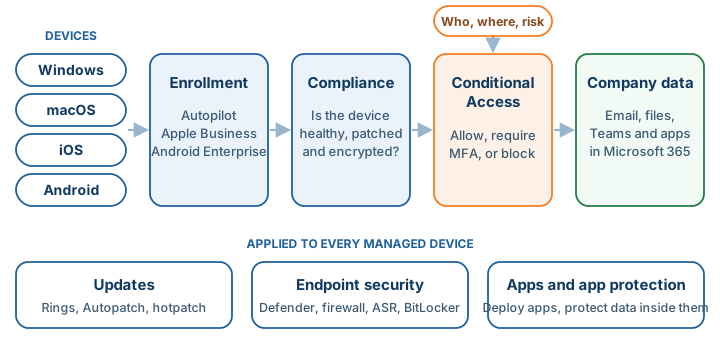
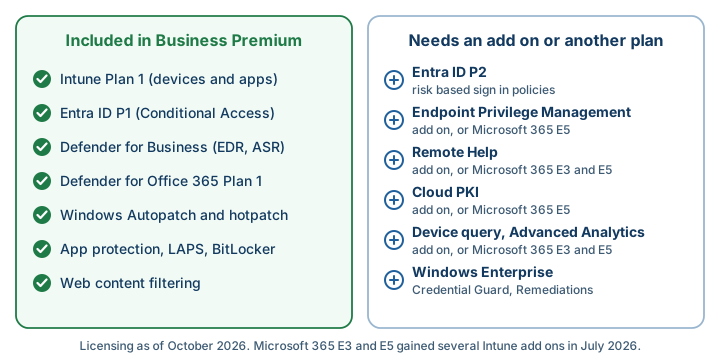
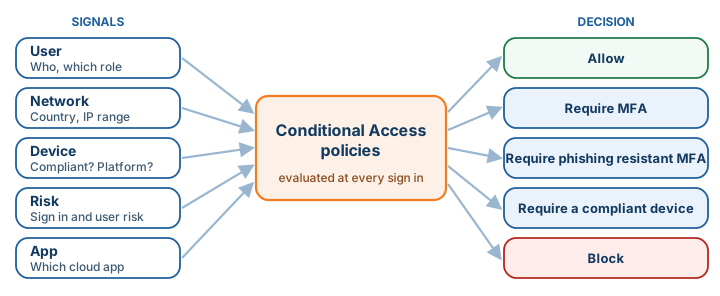
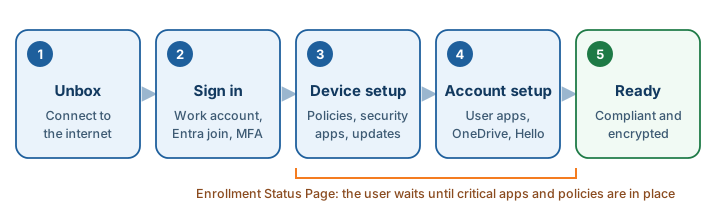
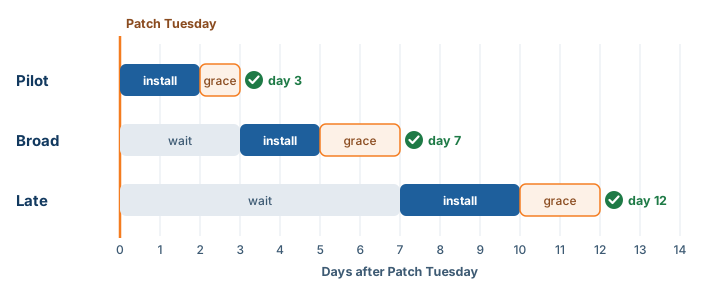
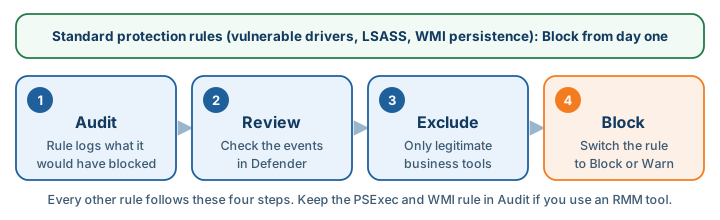
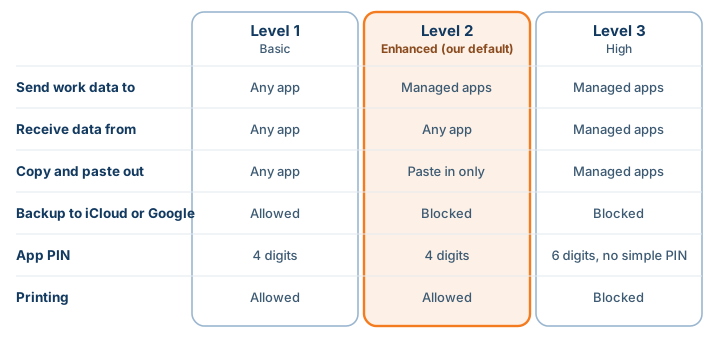
 Author: Helio Pereira